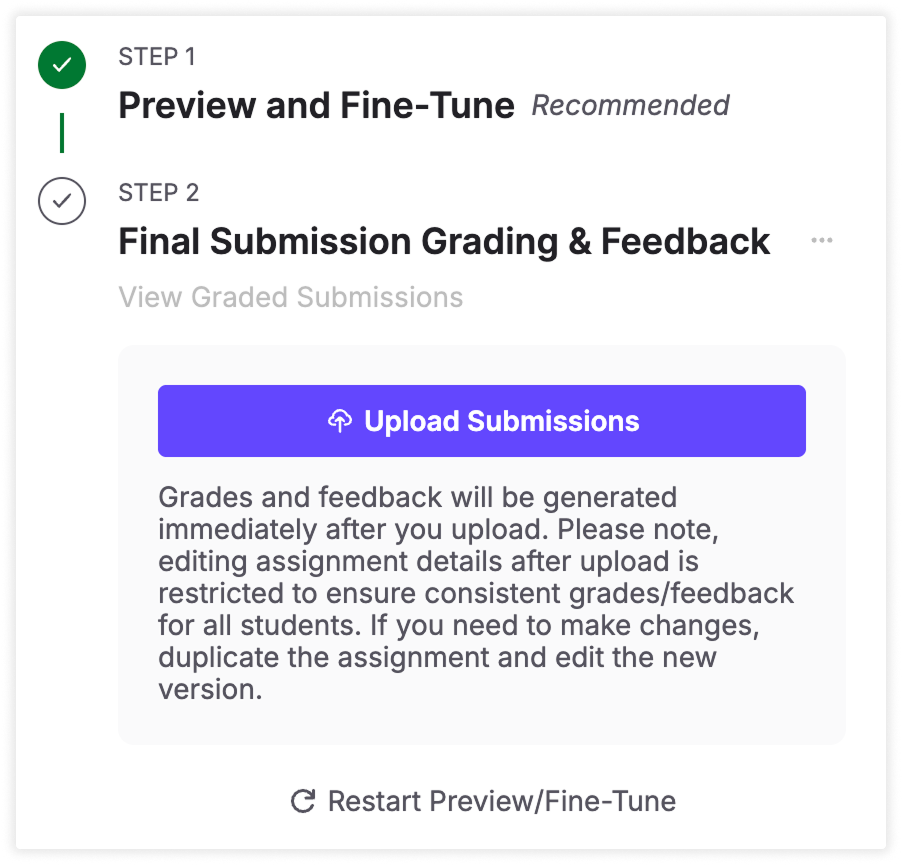
Before uploading student work, you can preview TimelyGrader’s grading and feedback suggestions using up to three sample submissions. If you’re not happy with the results, you can adjust assignment details through fine-tuning and preview again until the results meet your expectations.
When you're happy with your assignment setup, follow these steps to preview and fine-tune:
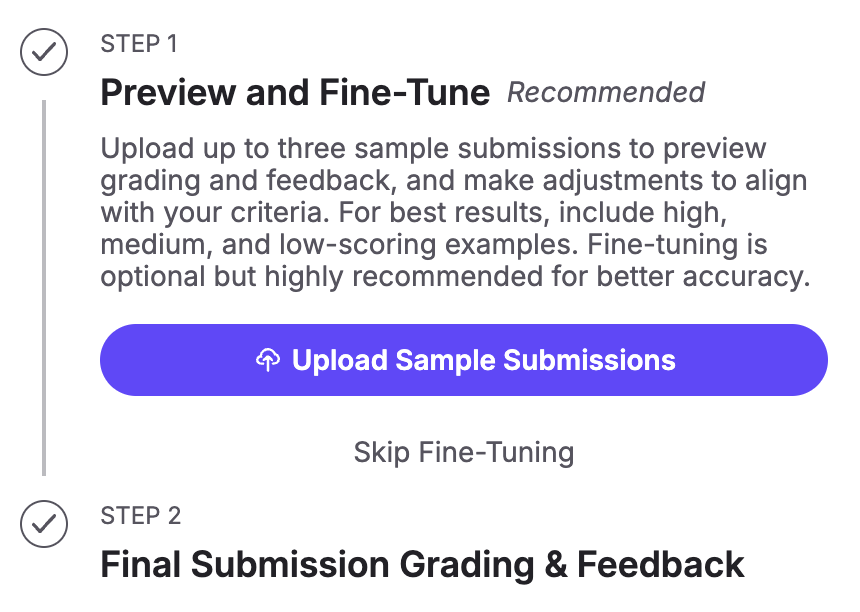
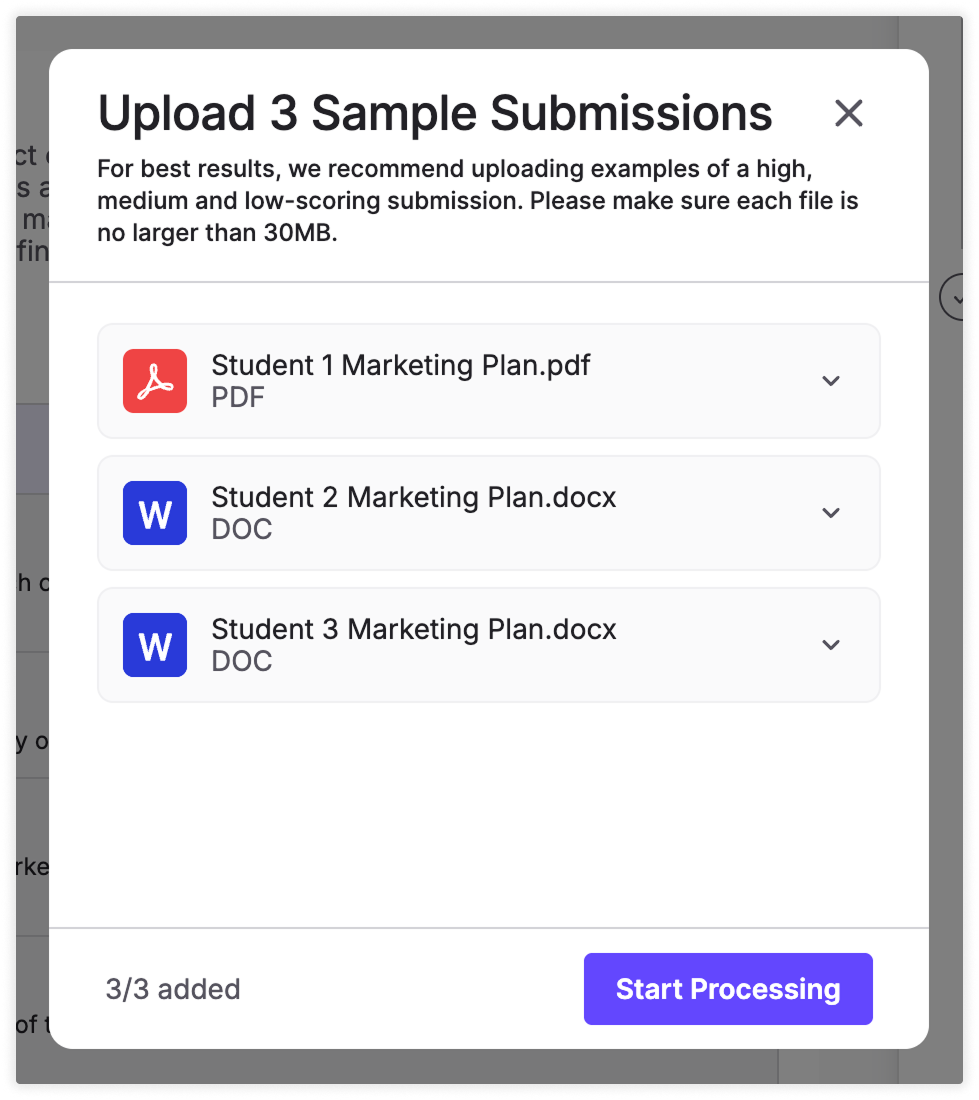
💡 Tip: We recommend uploading one low, one medium, and one high-scoring submission so you can preview what grading looks like across different performance levels.
When you open the fine-tuning window, you'll see a preview of suggested grades and feedback for the sample submission. You can switch sample submissions on this page.
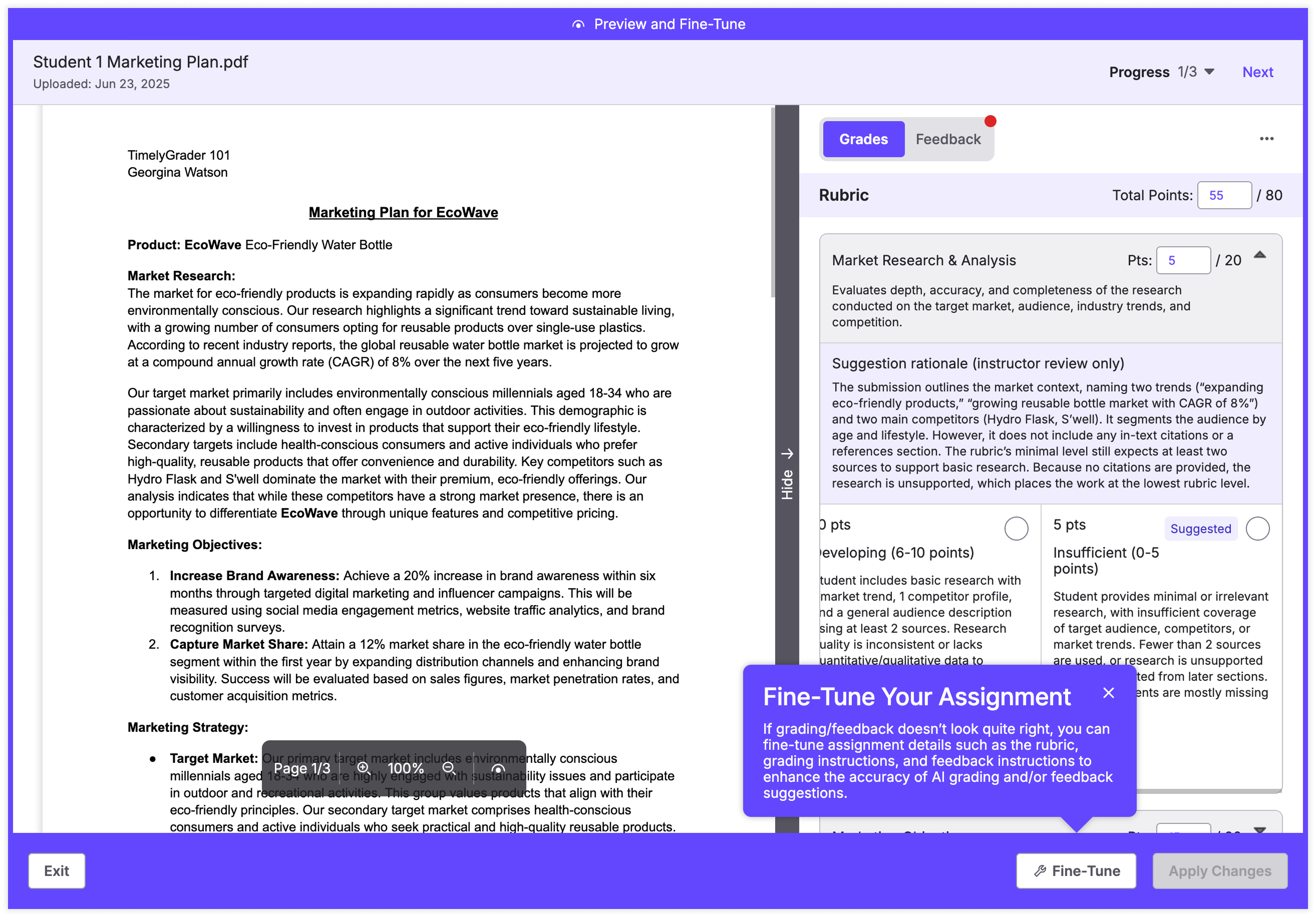
4. If you'd like to adjust the assignment setup, click "Fine-Tune."
In the fine-tuning window, you can adjust:
5. Make changes to the assignment setup, and click "Regenerate Grades/Feedback."
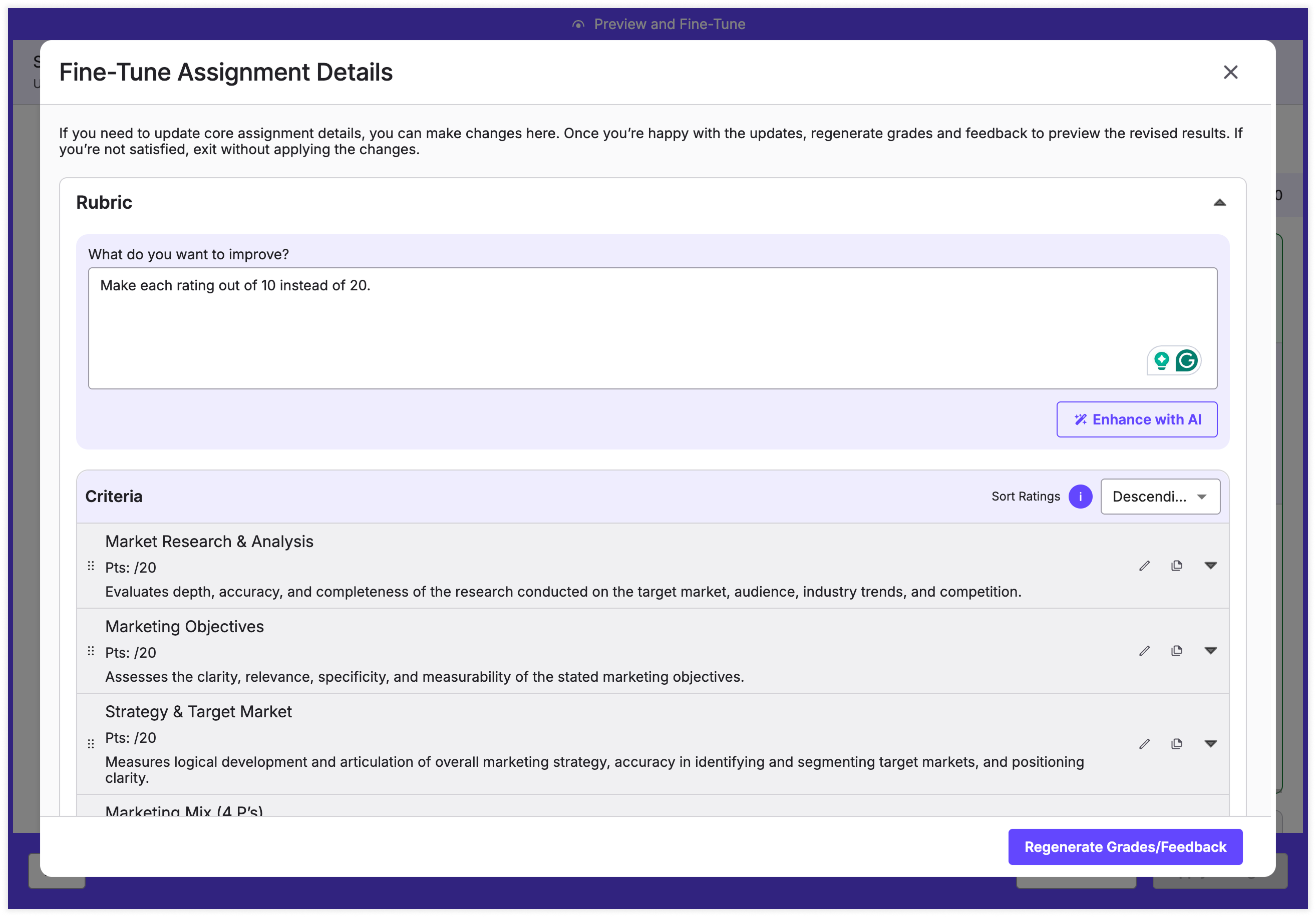
💡 Feature highlight: You can rapidly iterate on your assignment rubric by typing in instructions and clicking "Enhance with AI." In this example, we've asked the AI to decrease the maximum score for each criterion to 10 from 20.
6. Review the updated preview & continue to fine-tune
You will now see a preview of grades/feedback with the changes you made to the assignment setup reflected. Repeat steps 4 & 5 until you are satisfied with the results.
7. Click "Apply Changes."
This updates your assignment setup with the changes made during fine-tuning. If you exit without applying, any edits will be discarded.
💡 Note: To return to fine-tuning, just click “Restart Fine-Tuning.” Your sample submissions will still be saved.