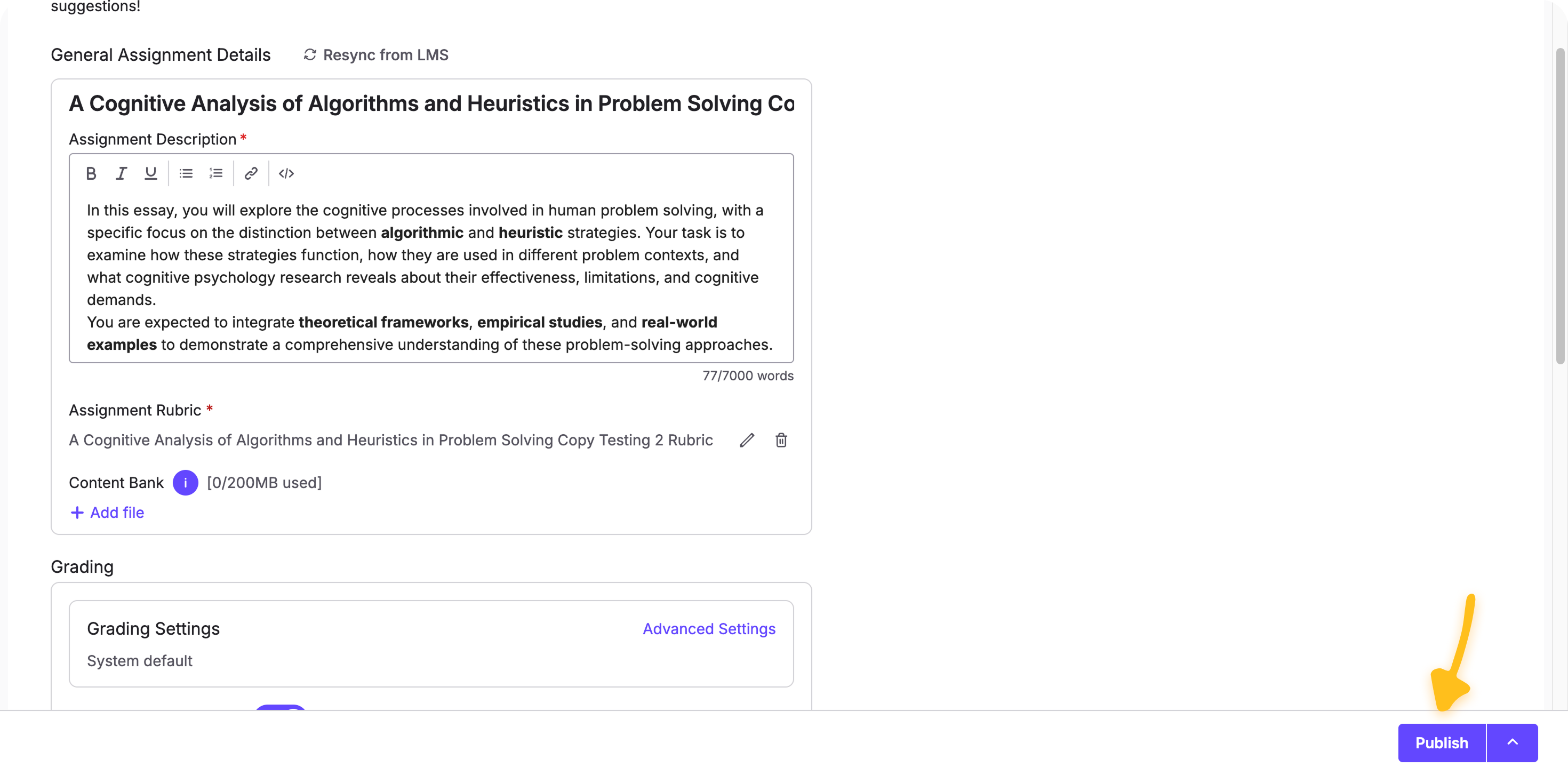
Create the assignment in TimelyGrader with a clear title and instructions. To generate a rubric, go to the Rubric section and click "+ Add Rubric".
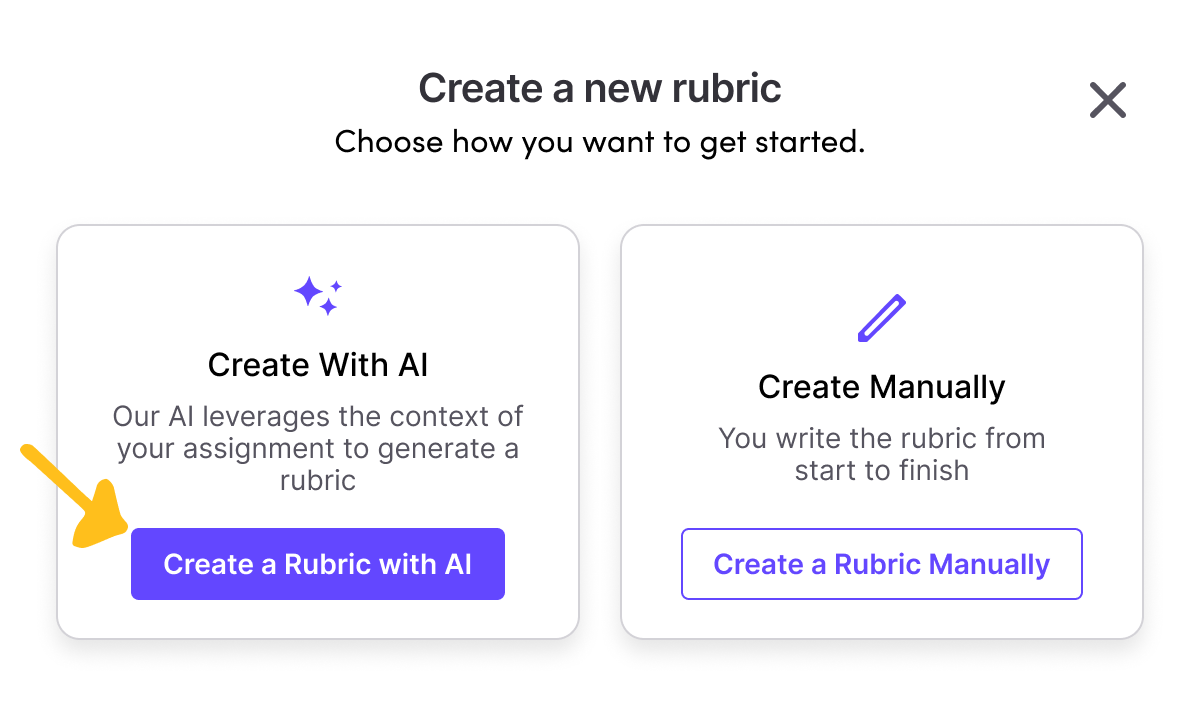
After clicking into "+ Add Rubric", choose a new rubric or a saved template. You’ll then see the "Create with AI" option to auto-build criteria, ratings, and points.
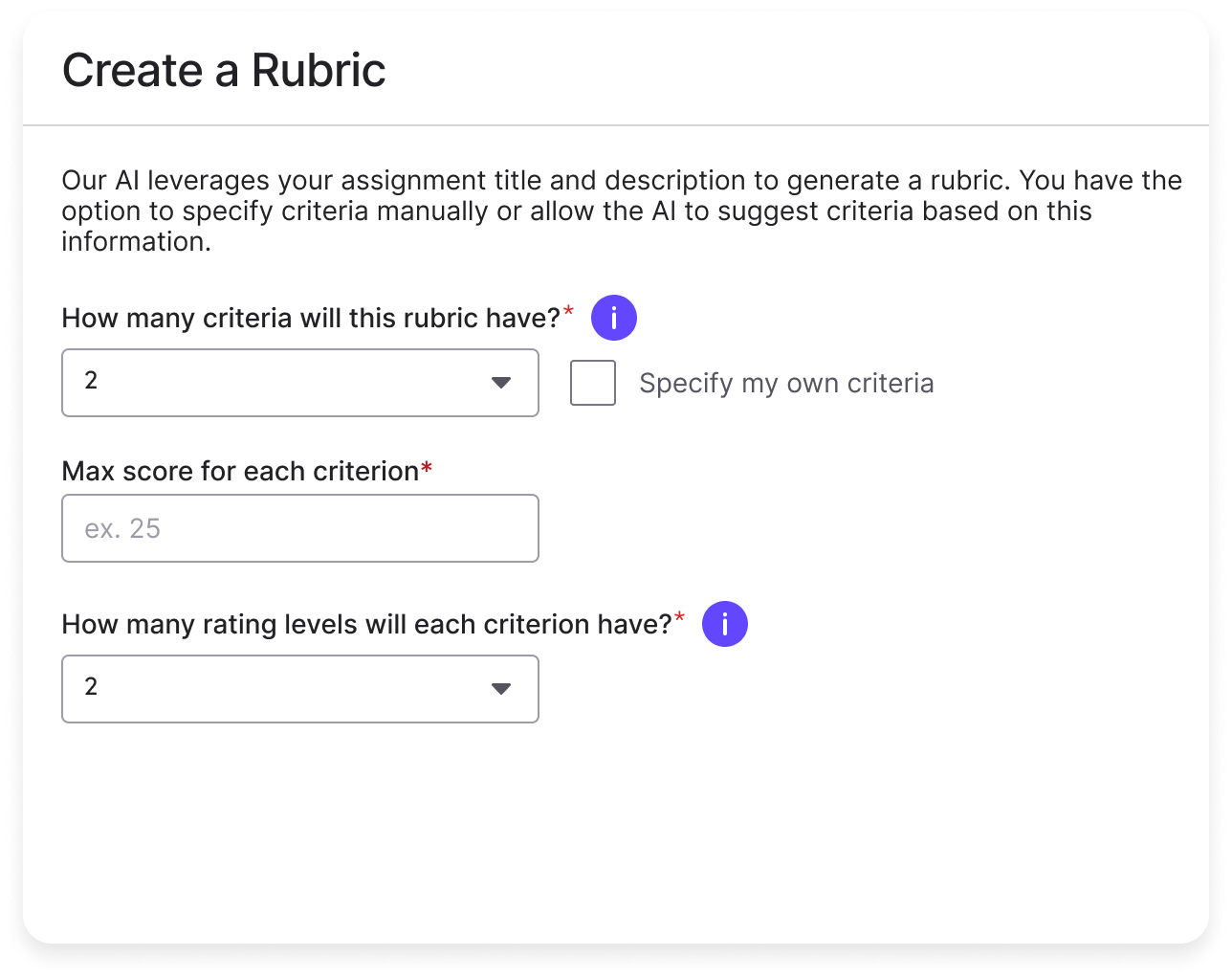
Decide how the rubric should be structured. You can set the number of criteria you want to evaluate, optionally name those criteria if you already have preferences (for example, Clarity, Use of Evidence, or Formatting), and assign a maximum score to each. You’ll also choose how many rating levels you want, such as three levels labeled Needs Improvement, Meets Expectations, and Exceeds Expectations. If you’re unsure about the exact criteria, you can leave them unspecified and let the AI suggest a sensible set based on the assignment type.
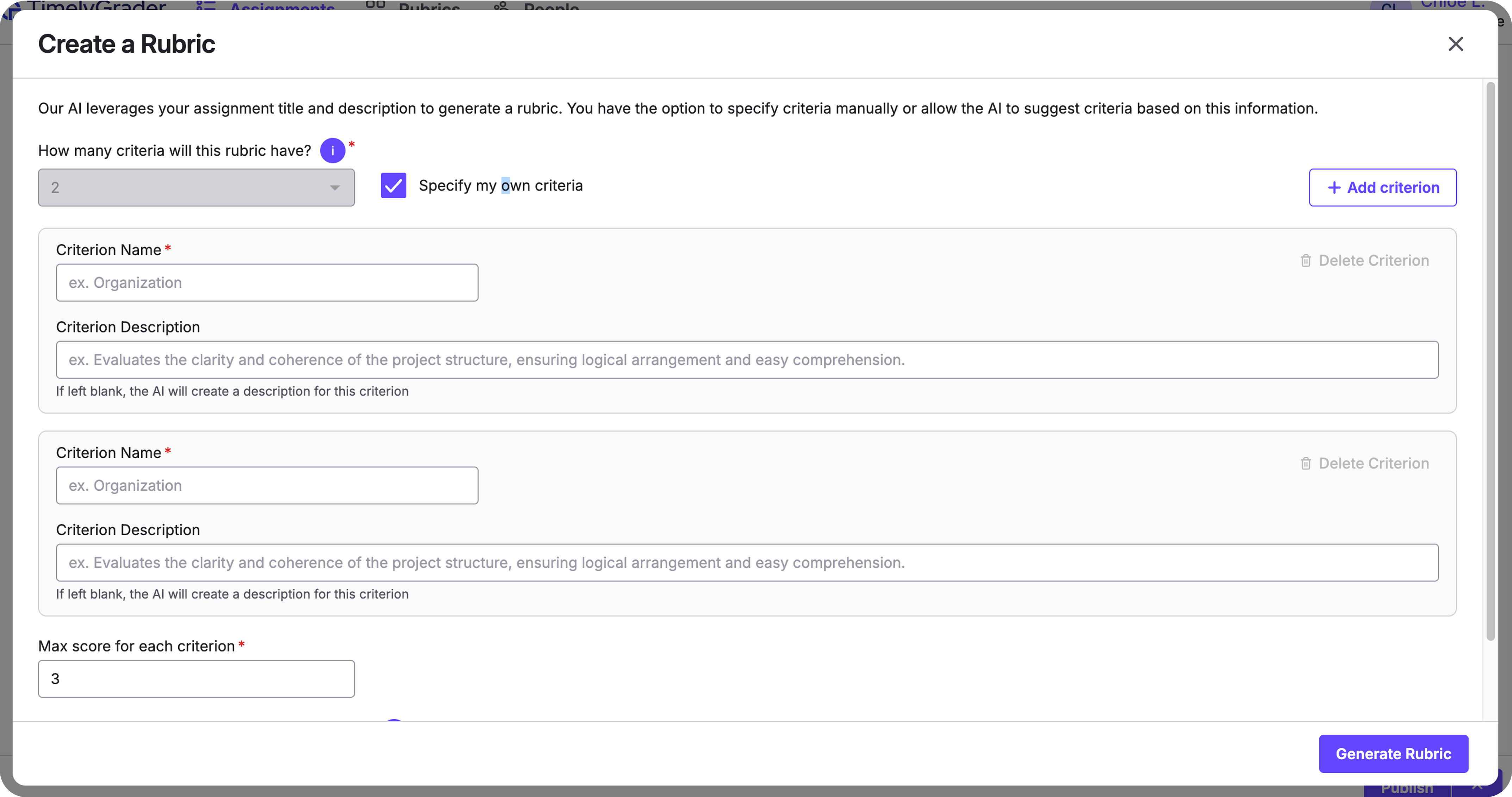
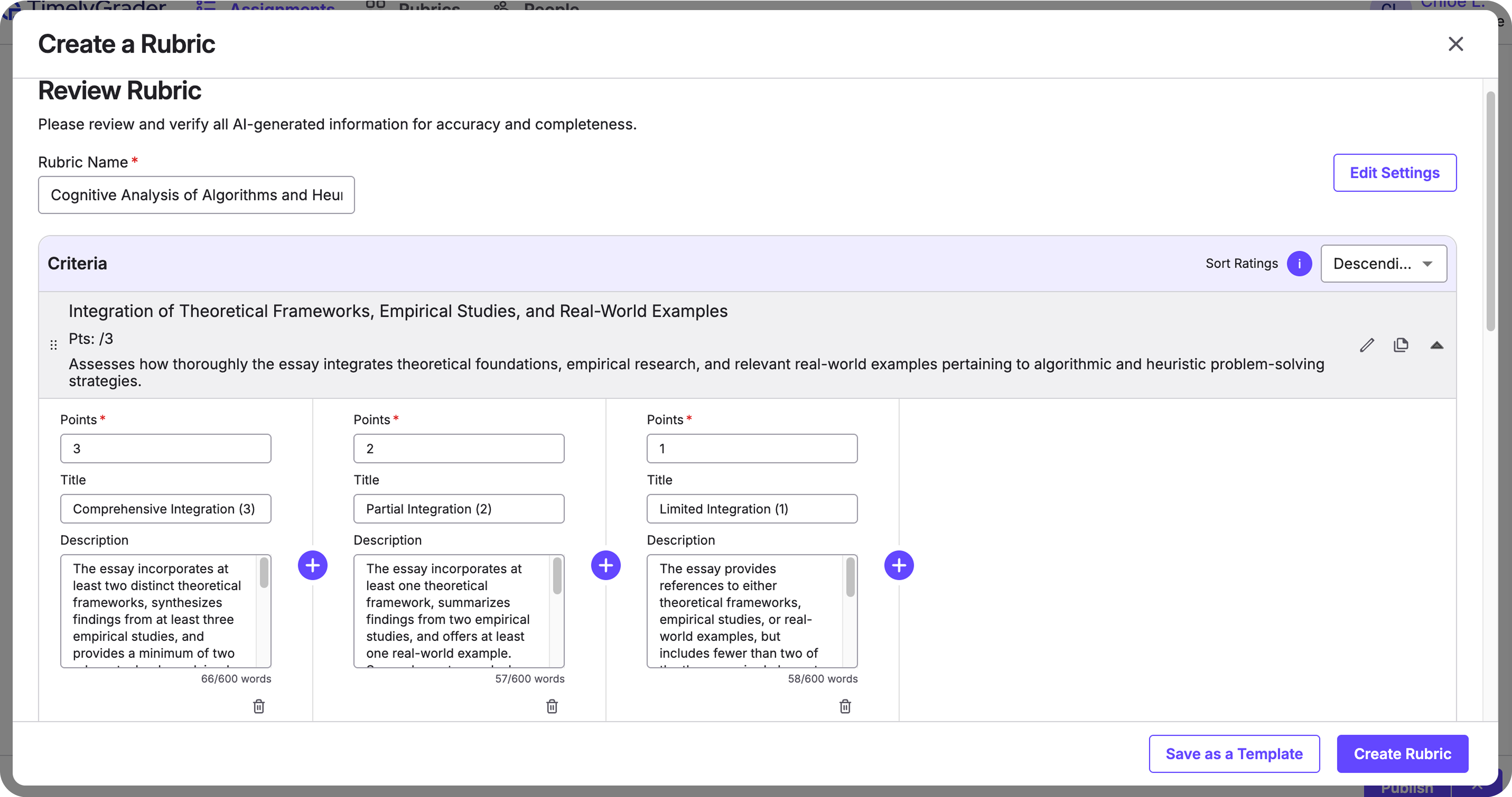
Click Generate Rubric and let the AI do the heavy lifting. It creates criteria with point values, labels the rating levels, and writes student-friendly performance descriptors aligned with your grading style. You can continue other work while this runs; when it’s ready, the full draft appears in the Rubric section for your review.
Review the draft for accuracy, tone, and fit. You can edit any part in place, including criterion names, point weights, and descriptors. If you want a different structure or voice, adjust the criteria, scores, or descriptions and regenerate. When you’re satisfied, confirm to save the rubric, then either publish your assignment or add more grading qualities.