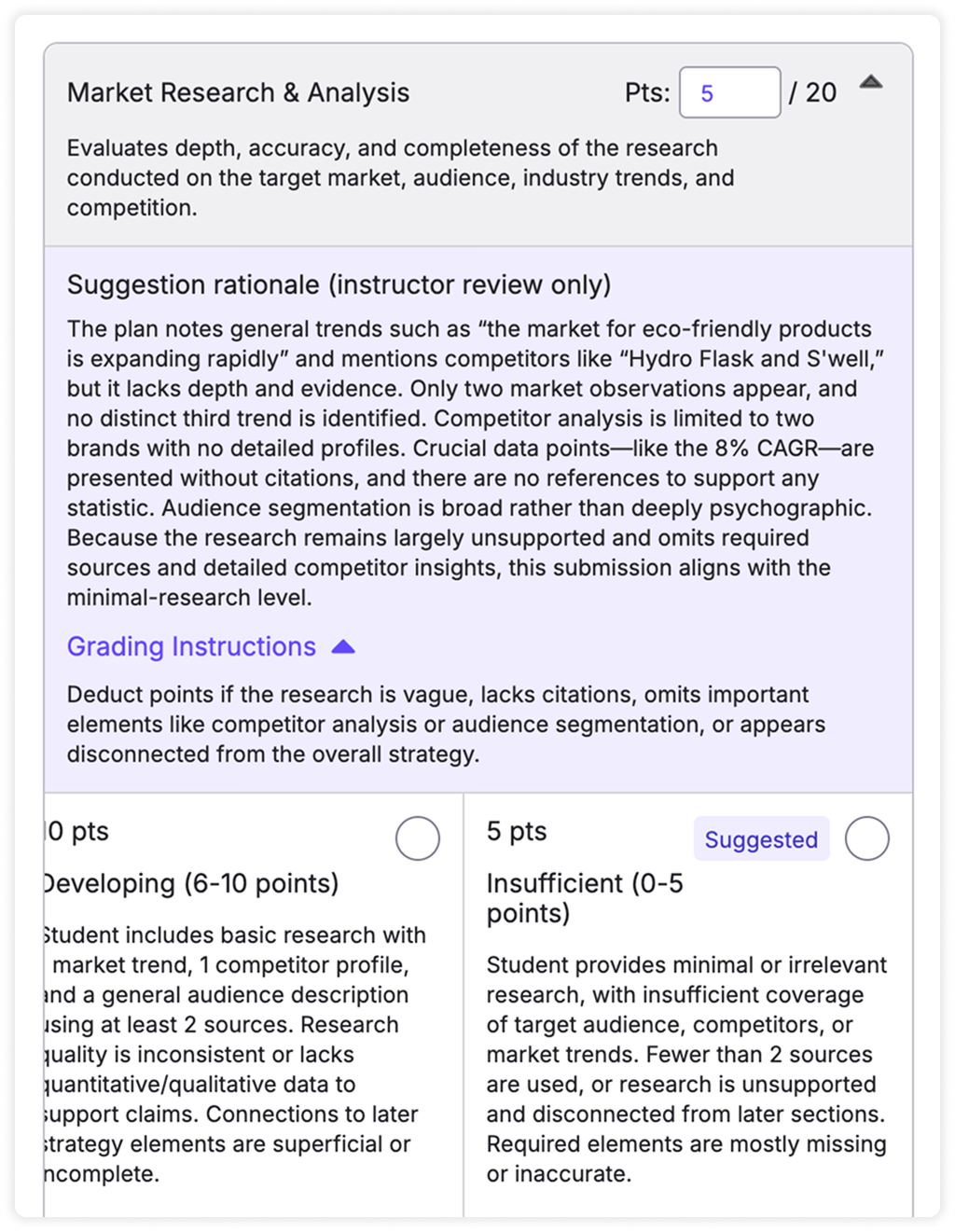
TimelyGrader’s Advanced Grading Settings give you more control over how grading suggestions are generated. You can guide the AI's grading suggestions by providing general or criterion-specific grading instructions.
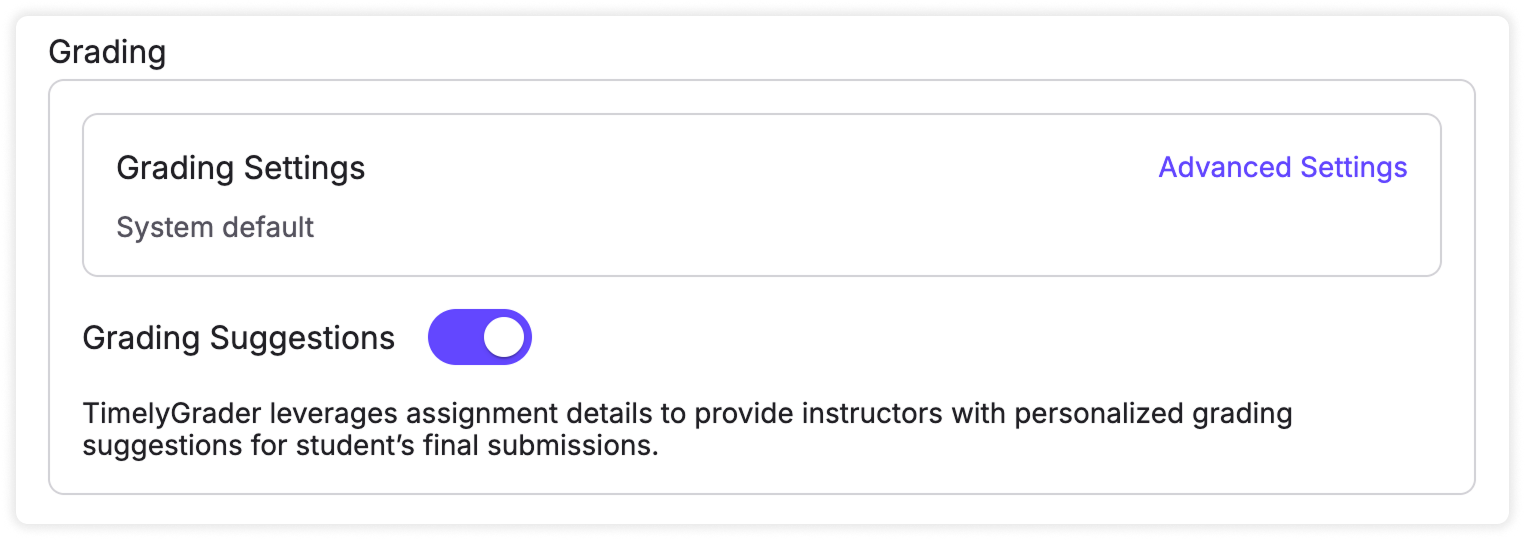
From the assignment setup view, scroll down to the Grading section, and click "Advanced Settings."
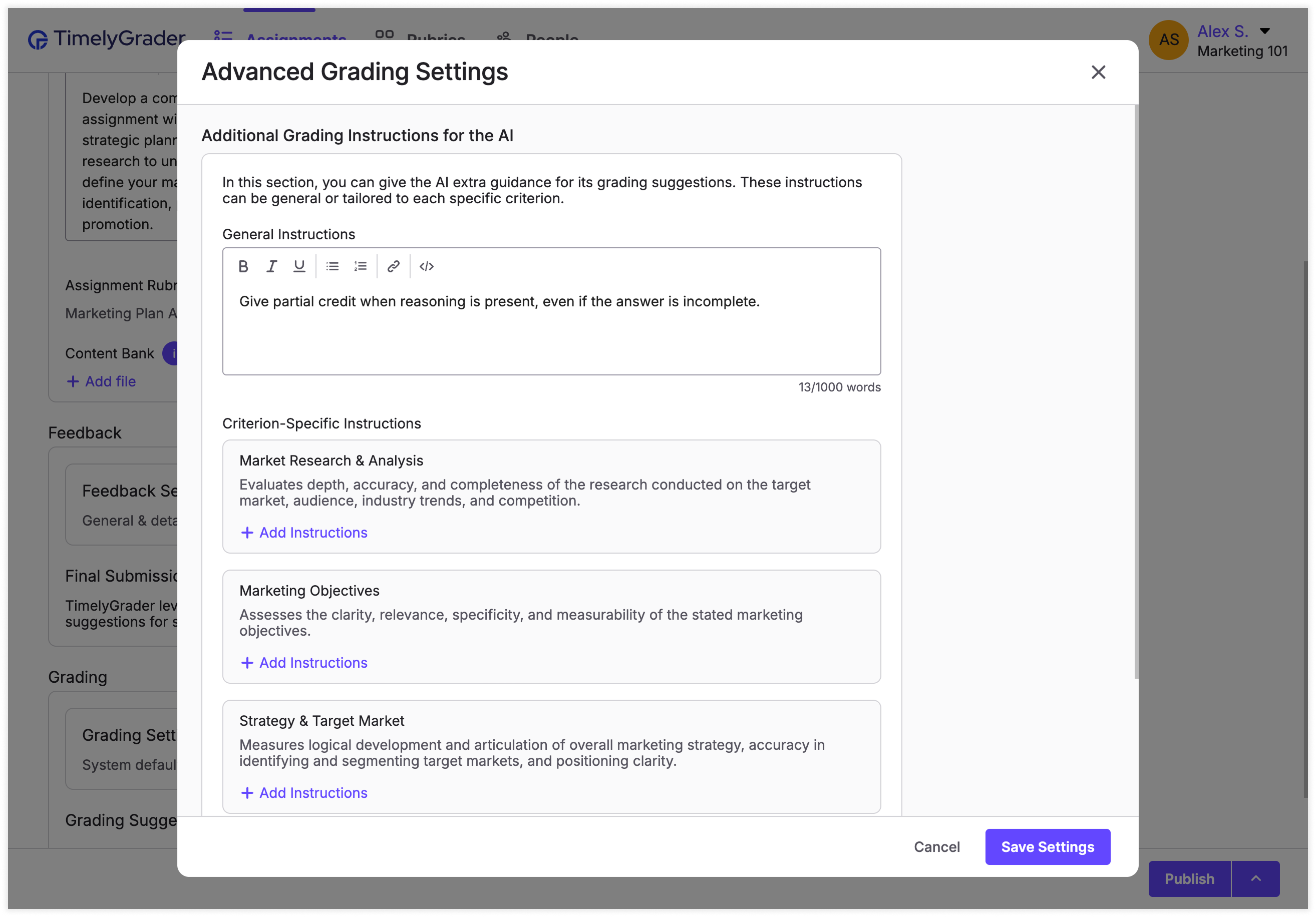
When you're editing advanced grading settings, you can add:
Provide high-level guidance for how you’d like the AI to approach grading across the entire assignment. For example:
👉 Criterion-Specific Instructions
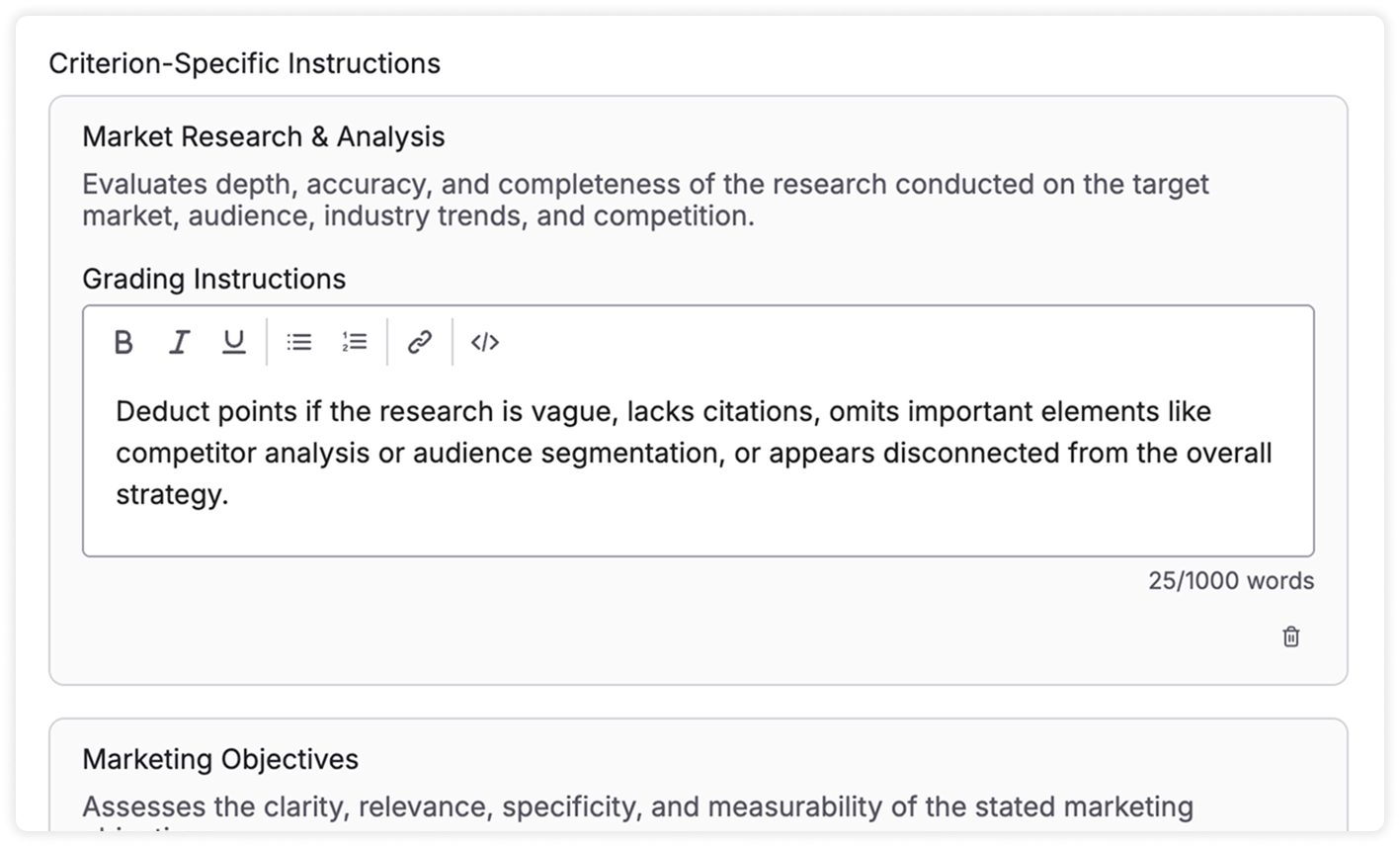
In addition to general instructions, you can also provide criterion-specific instructions. Just click "+ Add Instructions" and specify what the AI should consider when evaluating work for that particular criterion.
When you're happy with the adjustments you've made to grading settings, click "Save Settings."
💡 Important: These settings will be added to your assignment, but won’t be saved permanently until you publish or save the assignment.
Reviewing Criterion-Specific Instructions While Grading
When you're grading an assignment, you can easily review criterion-specific instructions by opening the "Grading Instructions" dropdown on the rubric.