Understanding what students see on TimelyGrader helps you support them, anticipate their questions, and design assignments where every submission becomes a coaching opportunity. Instead of feedback arriving days or weeks after a student has already moved on, TimelyGrader delivers it while students are still in the work, so assessment becomes where learning begins, not where it ends.
This is cognitive apprenticeship in practice: students see expert reasoning modelled, act on timely coaching, and revise with intention across multiple drafts. Here's what that looks like from the student's side.
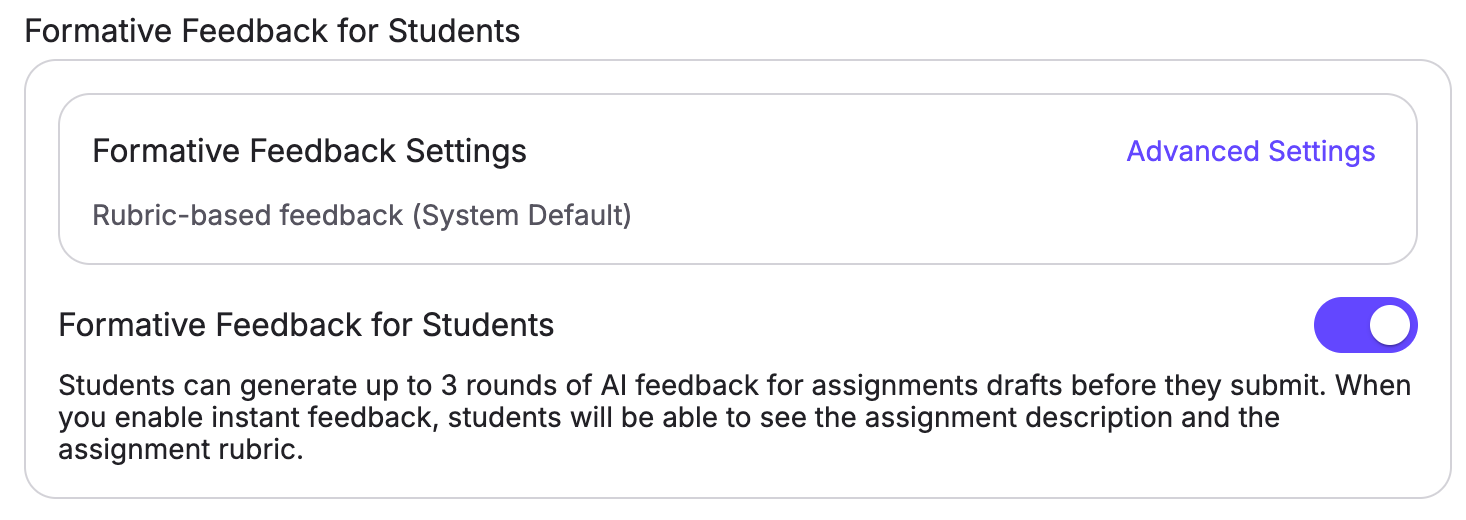
Once your roster is synced, students can access any assignment you've made available for Formative Feedback for Students. For an assignment to appear on a student's Assignments page, it must meet both of these conditions:
How Students Get Feedback
When Formative Feedback for Students is enabled for an assignment, students can generate up to three rounds of feedback on their drafts to help them revise and improve before submitting their final version. They can also converse with an AI chat that will understand their assignment, submission, and any feedback that was already provided to them.

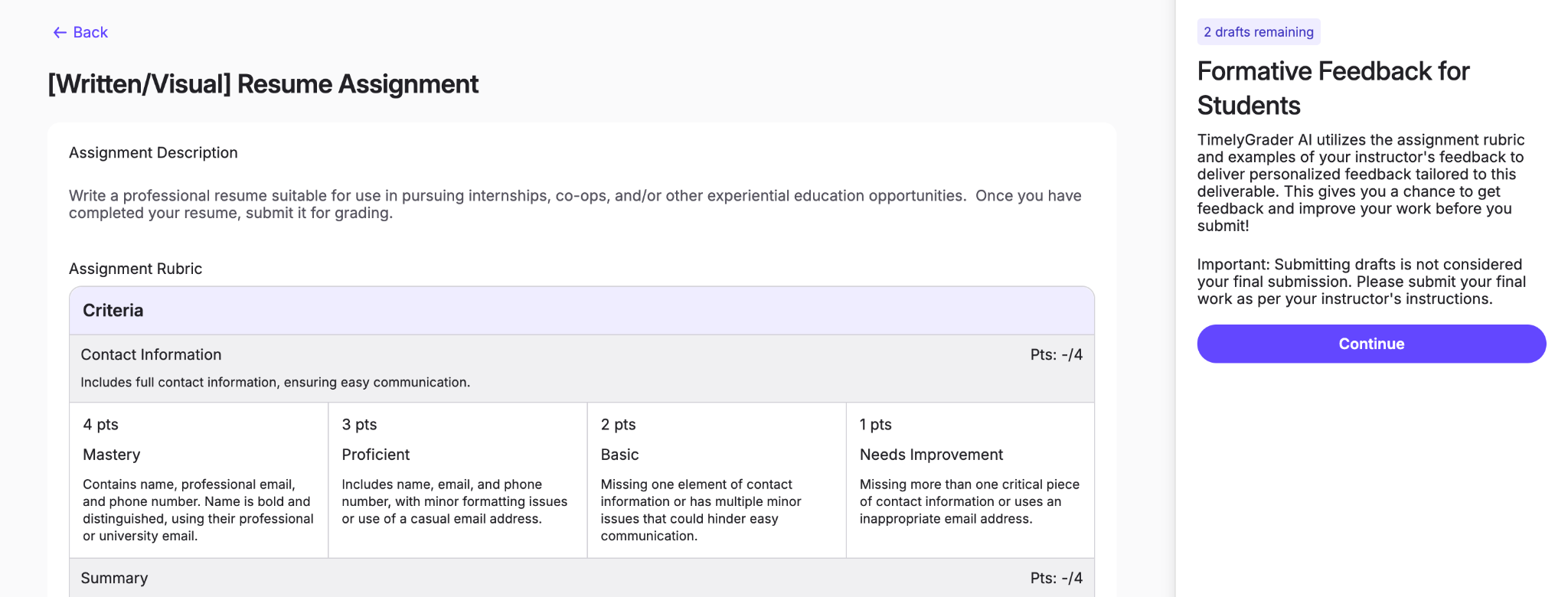
From the Assignments page, students can open an assignment to get feedback. They will be able to see:
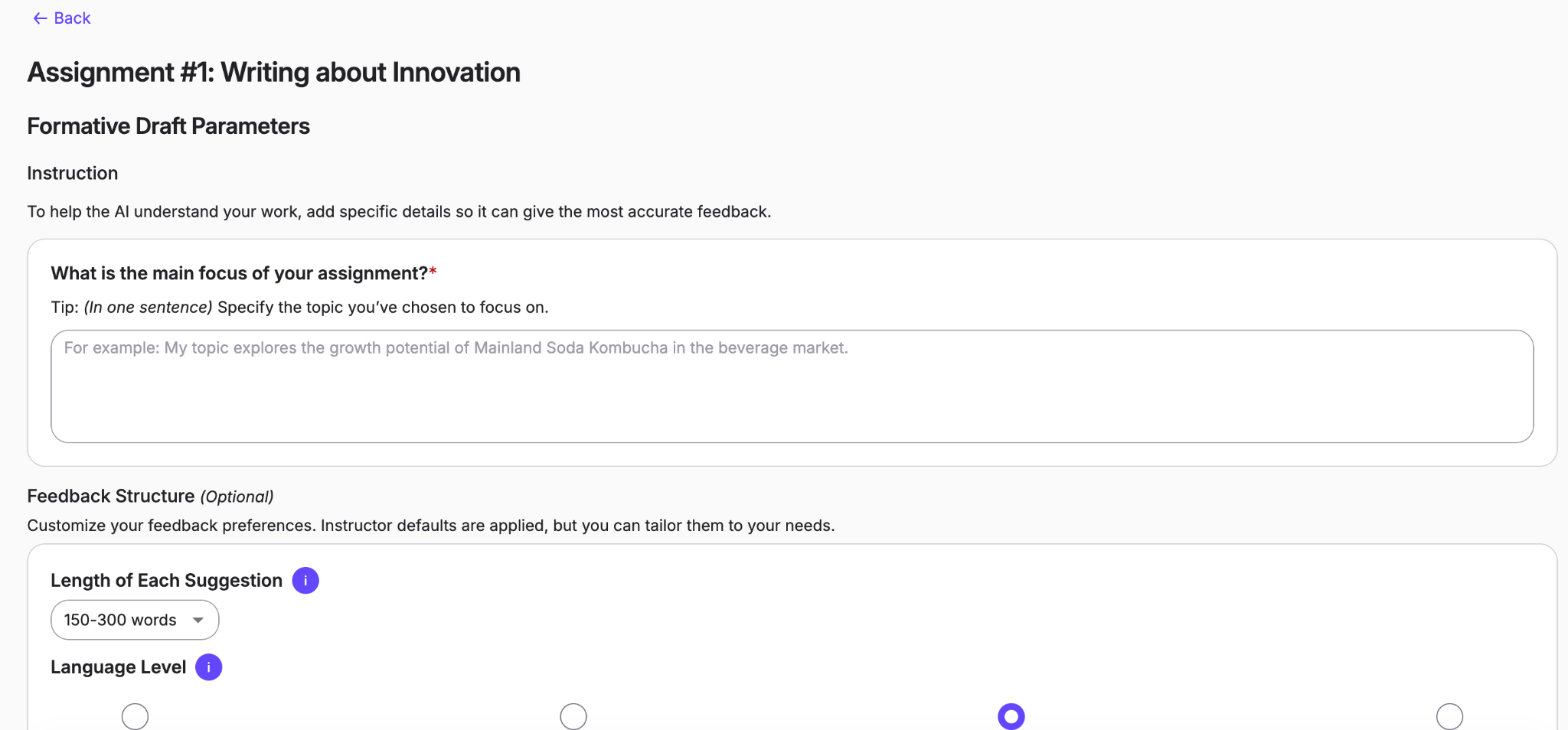
Students will be prompted to provide some brief description about their topic to keep the feedback personalized and relevant. They can also change any default feedback settings such as length of feedback to customize the feedback to their learning style.
Then, students can upload a draft for feedback by clicking “Upload Draft” in each draft attempt.
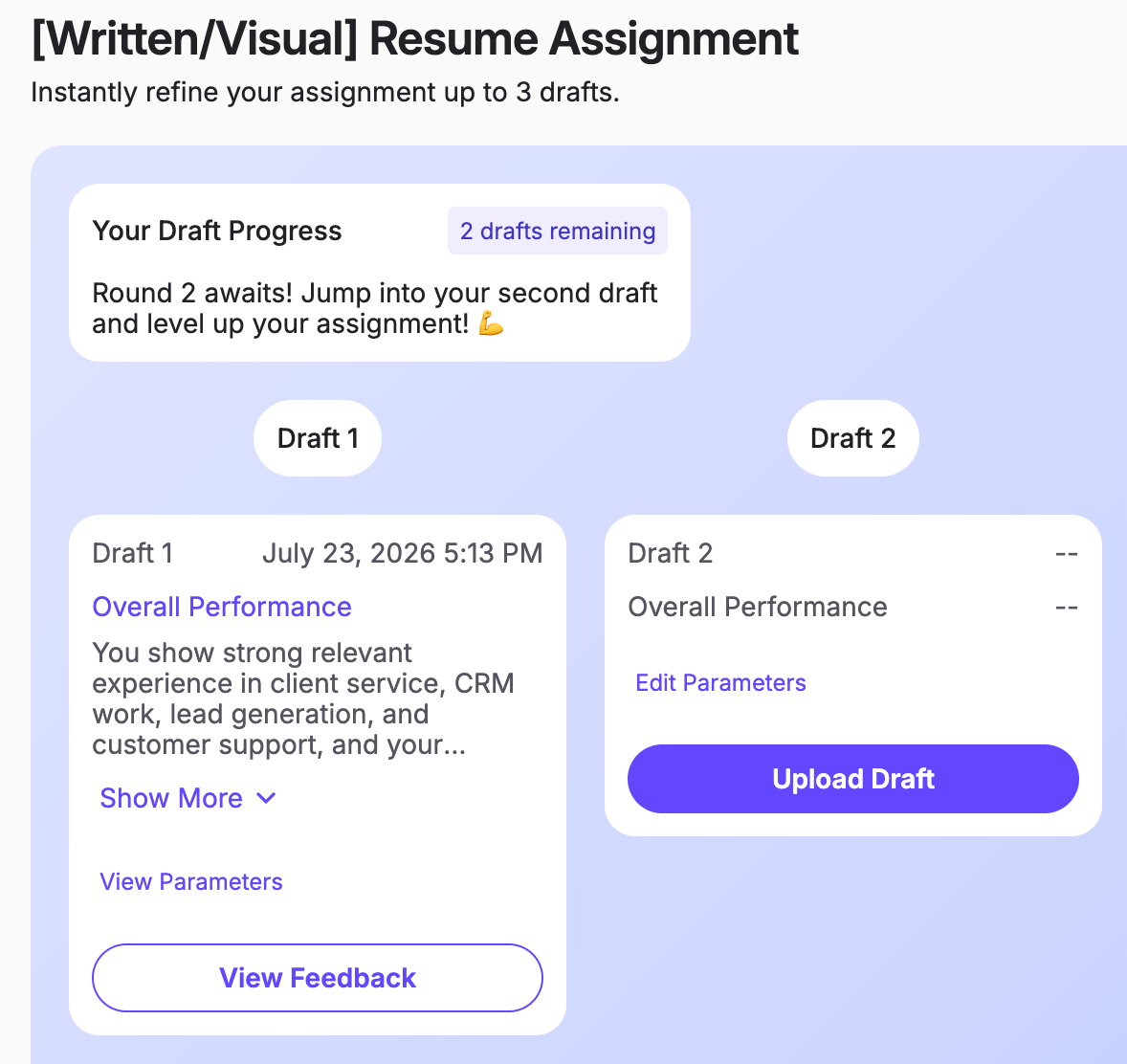
As soon as students upload their draft will begin processing, and when it's finished, they can click "View Feedback" to see feedback TimelyGrader has generated based on the parameters you set during assignment setup.
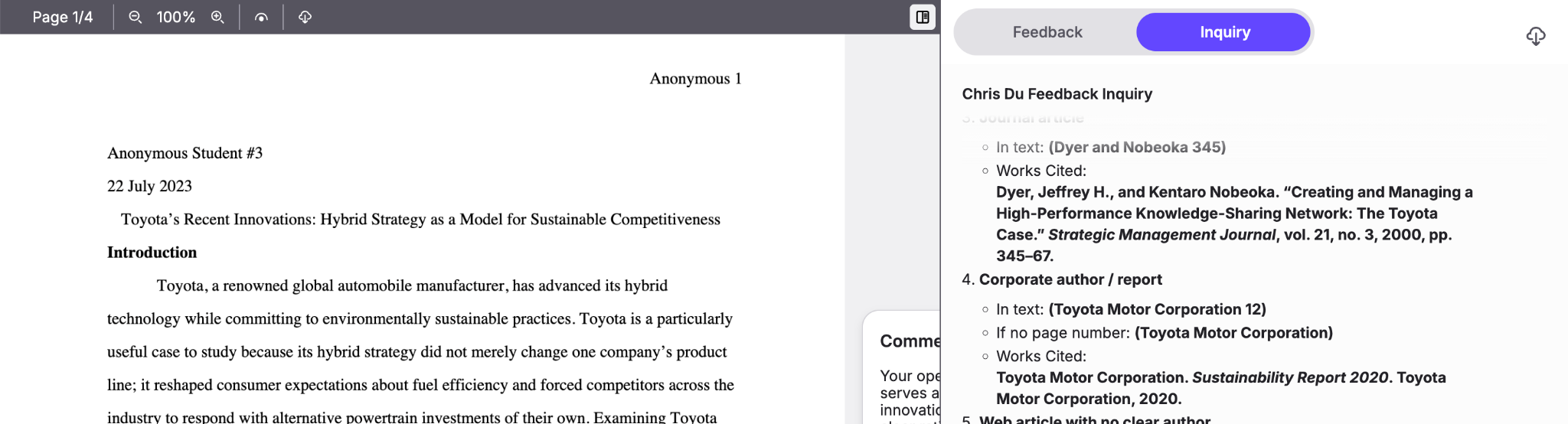
Students view feedback in a layout similar to the instructor grading view, with their assignment on the left and feedback displayed in the right sidebar.
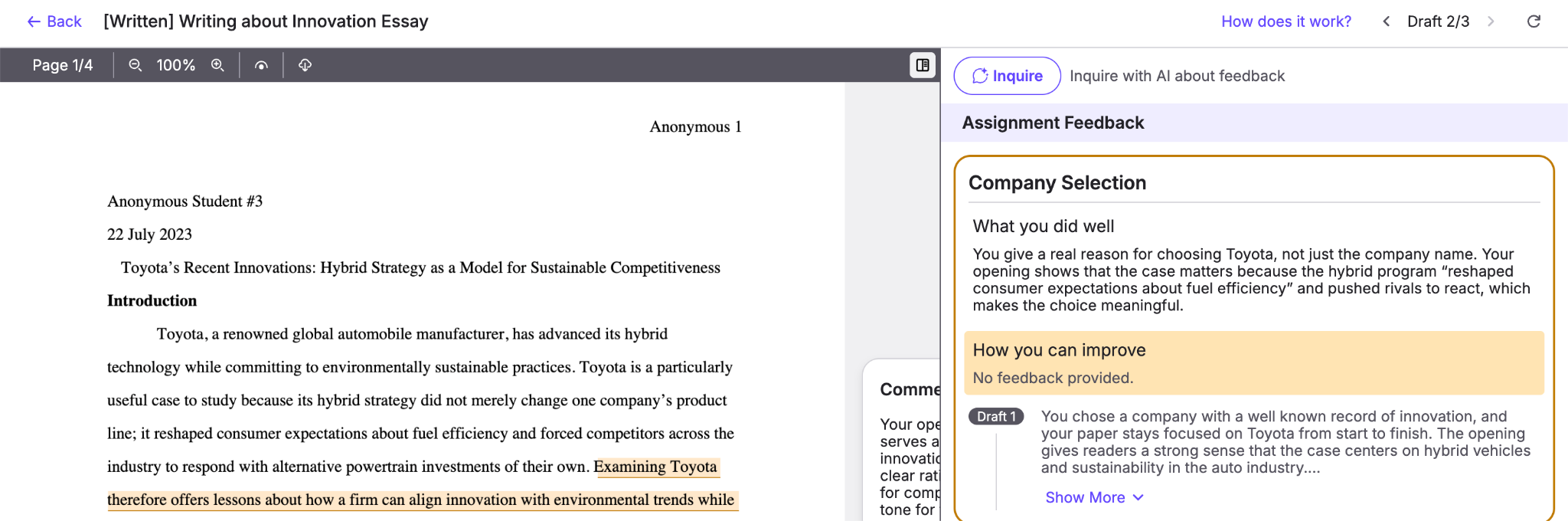
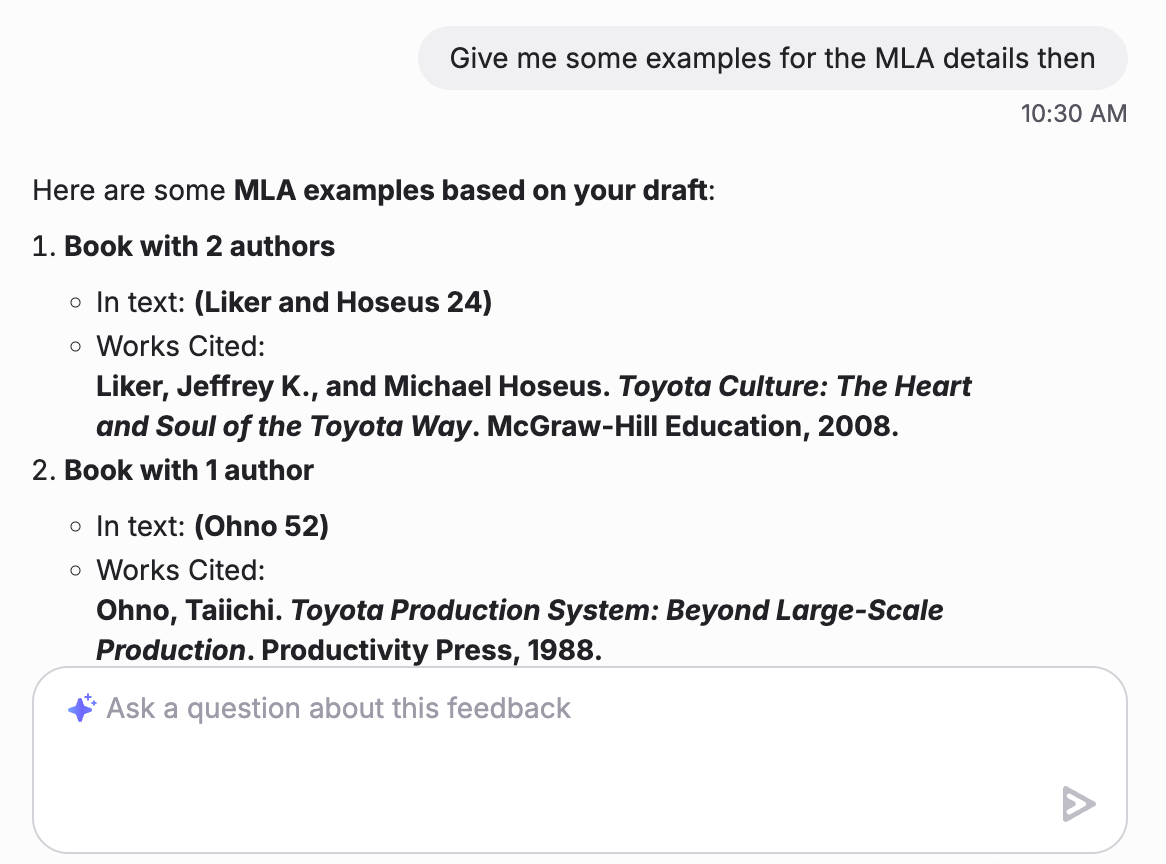
They can also inquire further about the feedback that was provided using the ‘Inquire’ button.
How to View Student Drafts as an Instructor
You can review feedback that students have generated at any time by opening the assignment from the Assignments page and clicking "View Insights" under Formative Feedback for Student Insights.
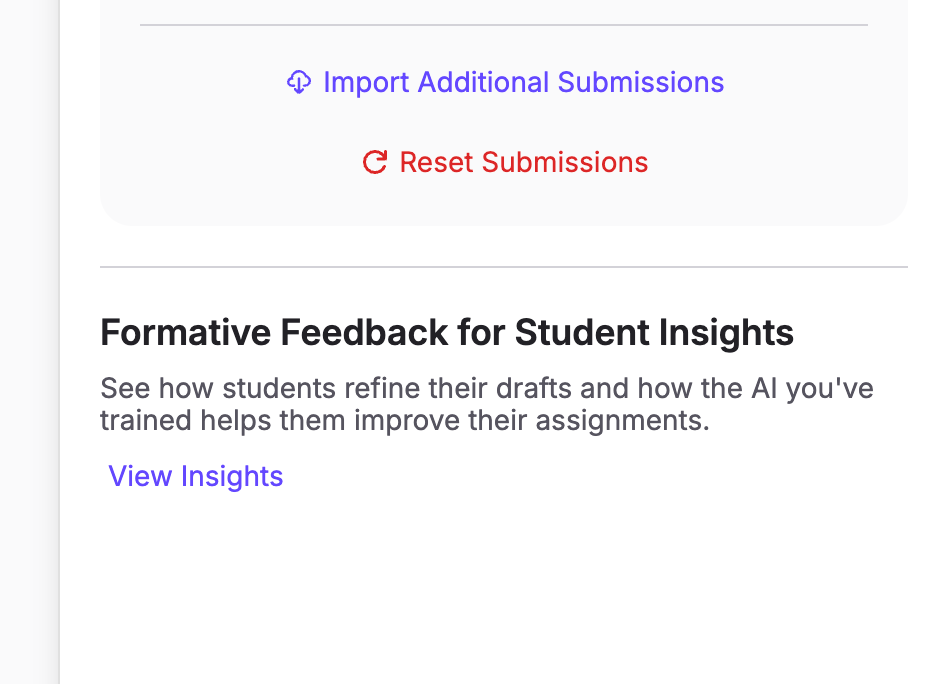
Then you can select which student’s drafts to view.

You will be able to see the drafts that student submitted and all the feedback that was provided to them. You can also see the history of the feedback that was provided to them and any chat history with AI.