You've opened up TimelyGrader for the first or maybe after a long vacation, what do you do next?
1. You will be greeted by the 'Course Lobby' page.
Think of it as your hub where you can access all of your courses on TimelyGrader.
If it's the first time you are using TimelyGrader, this page may be empty and that's okay.
If you already have courses, you can simply click into the course you want to use TimelyGrader for.
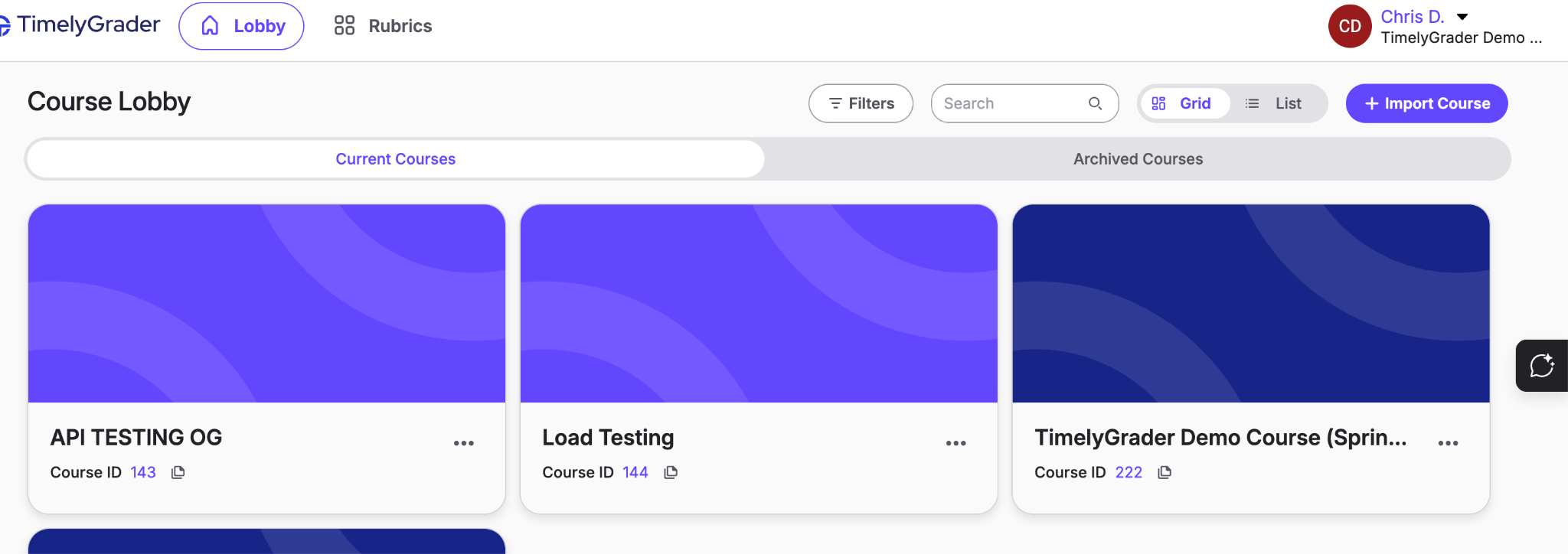
Note: If you are using the LTI 1.3 link, you will automatically be entered into the course, bypassing this step entirely. You can always go back to the Course Lobby afterwards.
2. Importing new courses from your LMS to TimelyGrader
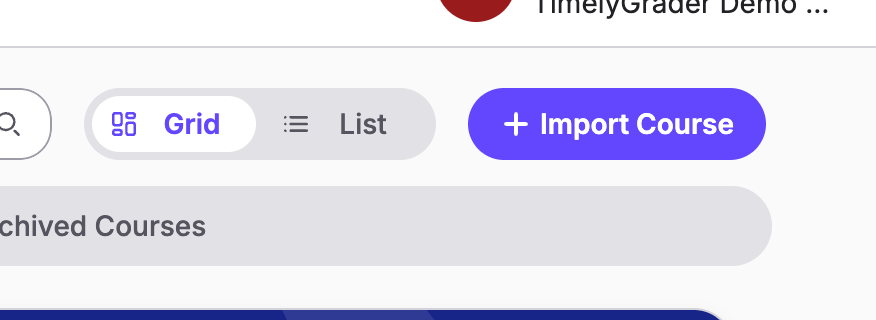
We don't import all of your courses because you may only use TimelyGrader for one or two courses each semester. You know which course you are going to use TimelyGrader in so you can simply click on the "+ Import Courses" button.
3. There are two ways to import a D2L course: 1) Select from List 2) Course ID.
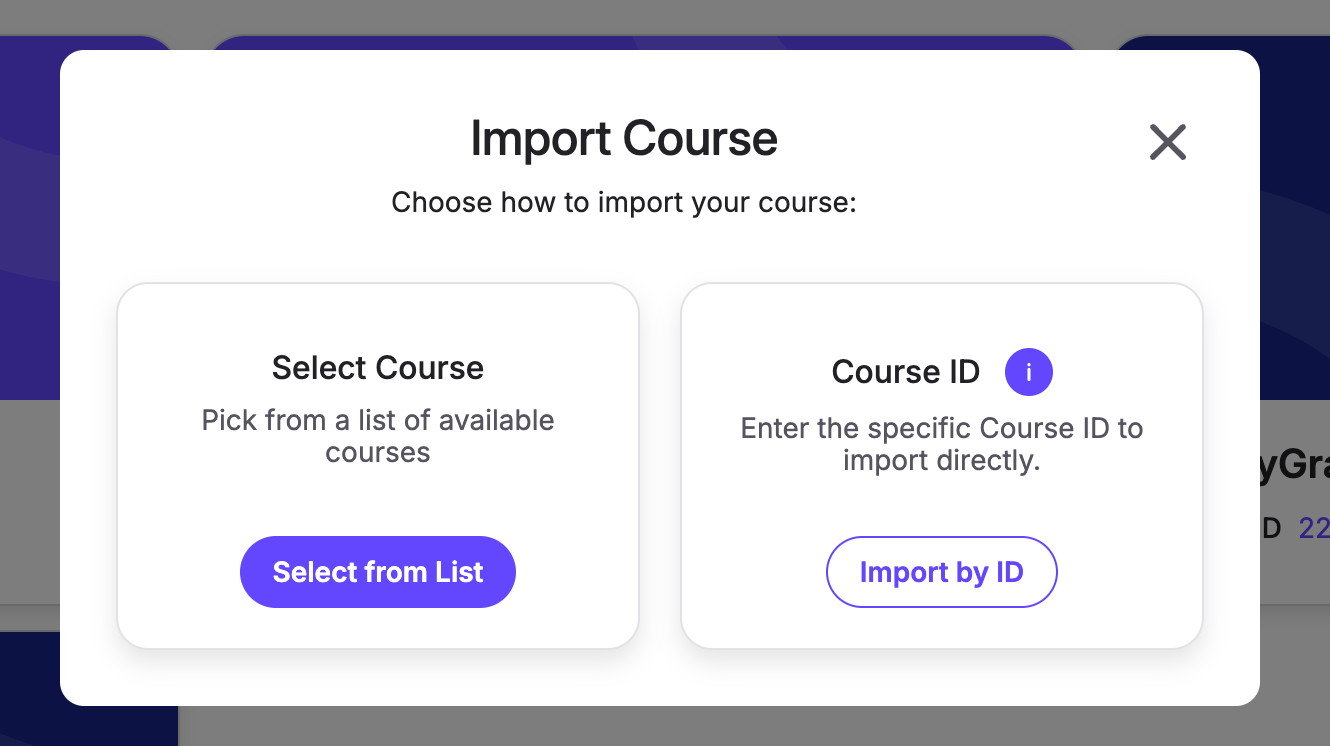
4. With ‘Select from List’, simply sSelect the course you want to import from the dropdown and import!
You will be able to open up a drop-down and select the course you are interested in using TimelyGrader to import. After that, you can begin importing assignments for TimelyGrader to start help you with grading!
If you are an instructional designer or Admin, this option may take a long time to load because of the amount of courses you have access to. Instead, use the ‘Import by ID’ option.
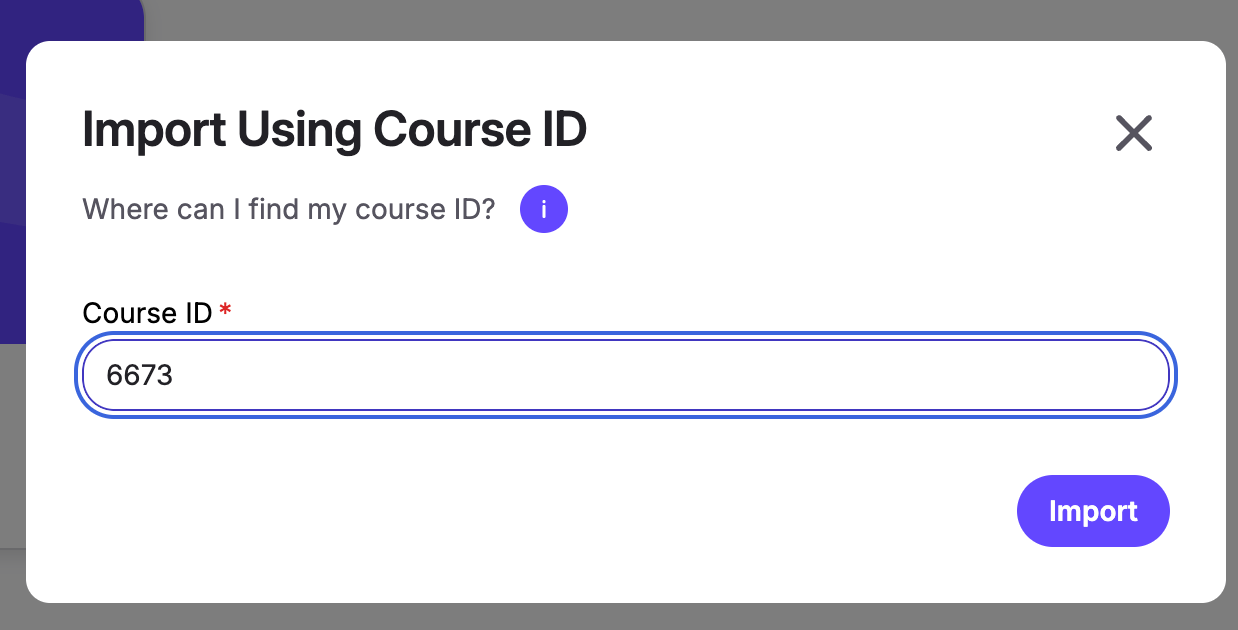
5. With the ‘Import by ID’ option, you will be asked to enter your D2L course ID which can be found in the URL of the D2L Course.
Example: in the D2L course URL below, ‘6673’ is the Course ID.

Input 222 into the field and click on Import to complete the course import functionality.