
Tutorial

[D2L] Exporting Grades and Feedback

Learn how to export grades and feedback as a CSV in just two steps!

Once you’ve finished grading, you can easily export grades and feedback from TimelyGrader as a CSV. Here’s how:

1. Open the Assignment

From the assignments page within your course, open the assignment you want to export grades/feedback for.
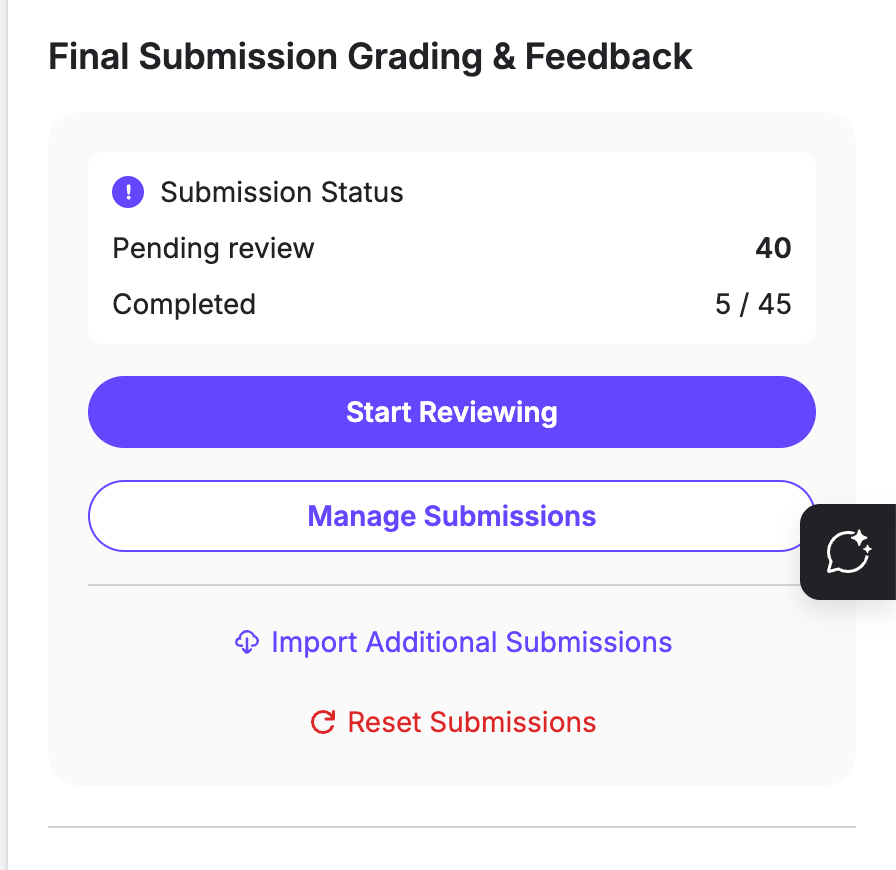
2. Export Grades/Feedback

Click the "Manage Submissions" page select "Export to CSV"
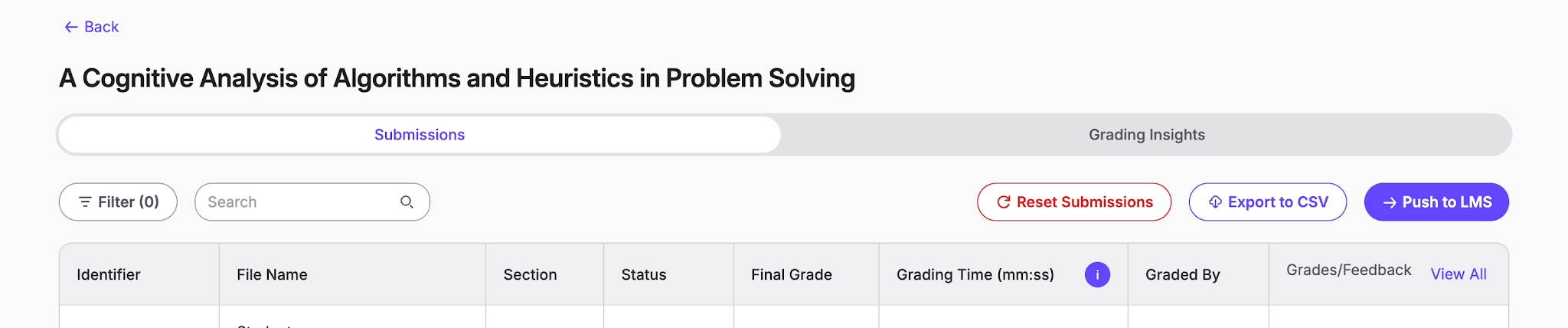
This will automatically download a CSV containing all grades and feedback for the assignment.


Check out other guides

Tutorial
[D2L] Regeneration For More Accurate Feedback
Learn how AI regenerates your feedback, refining the targeted comments guided by your input.
Tutorial
[D2L] Refining AI Accuracy in TimelyGrader: A Practical Guide
Learn quick, targeted tweaks to make AI feedback clearer, more accurate, and aligned with your rubric.
Tutorial
[D2L] AI Rubric in Assignment Setup
Learn how to turn assignment details into structured, point-based rubrics with clear rating levels, customize criteria and scores, and sync to your D2L for faster, more consistent grading.