
Passing back grades and feedback to Canvas is a sensitive but essential step. Please follow these steps to ensure everything is passed back correctly.
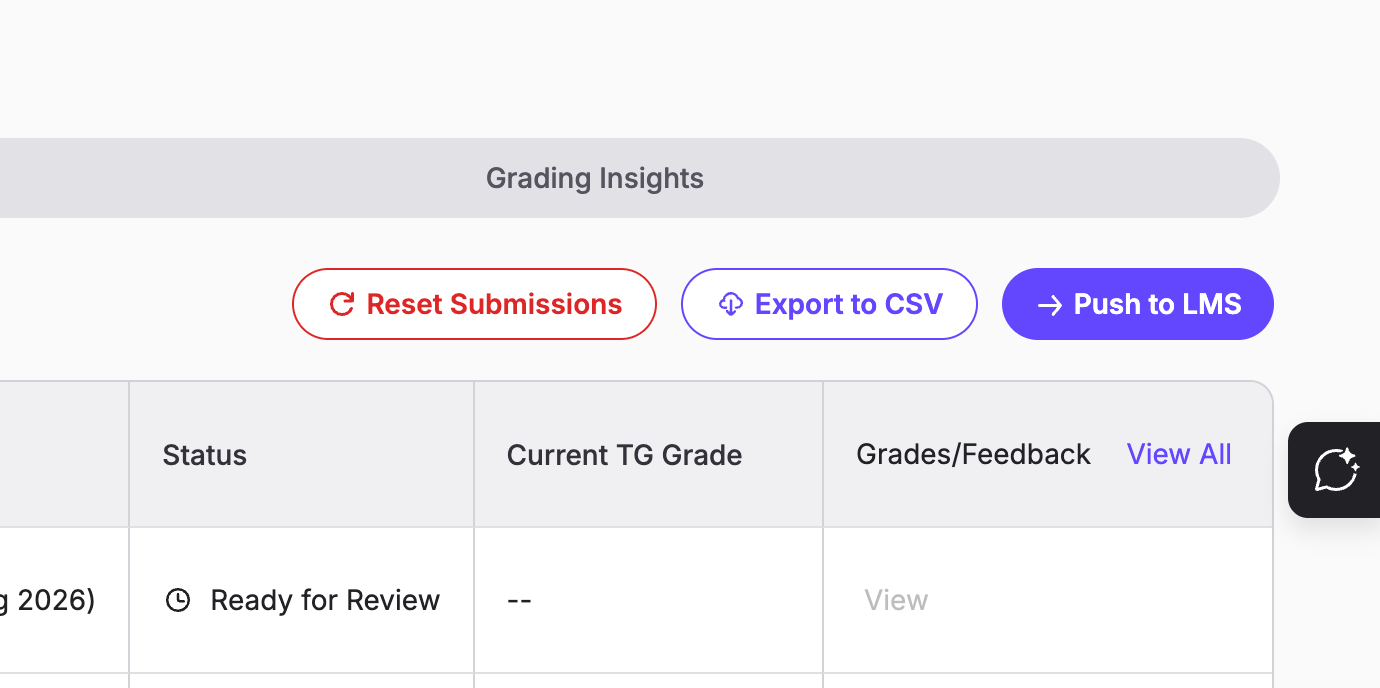
You can push grades back to Canvas. Go into the Manage Submissions page and click on Push to LMS. If you have trouble finding it, here are some screenshots to help you.
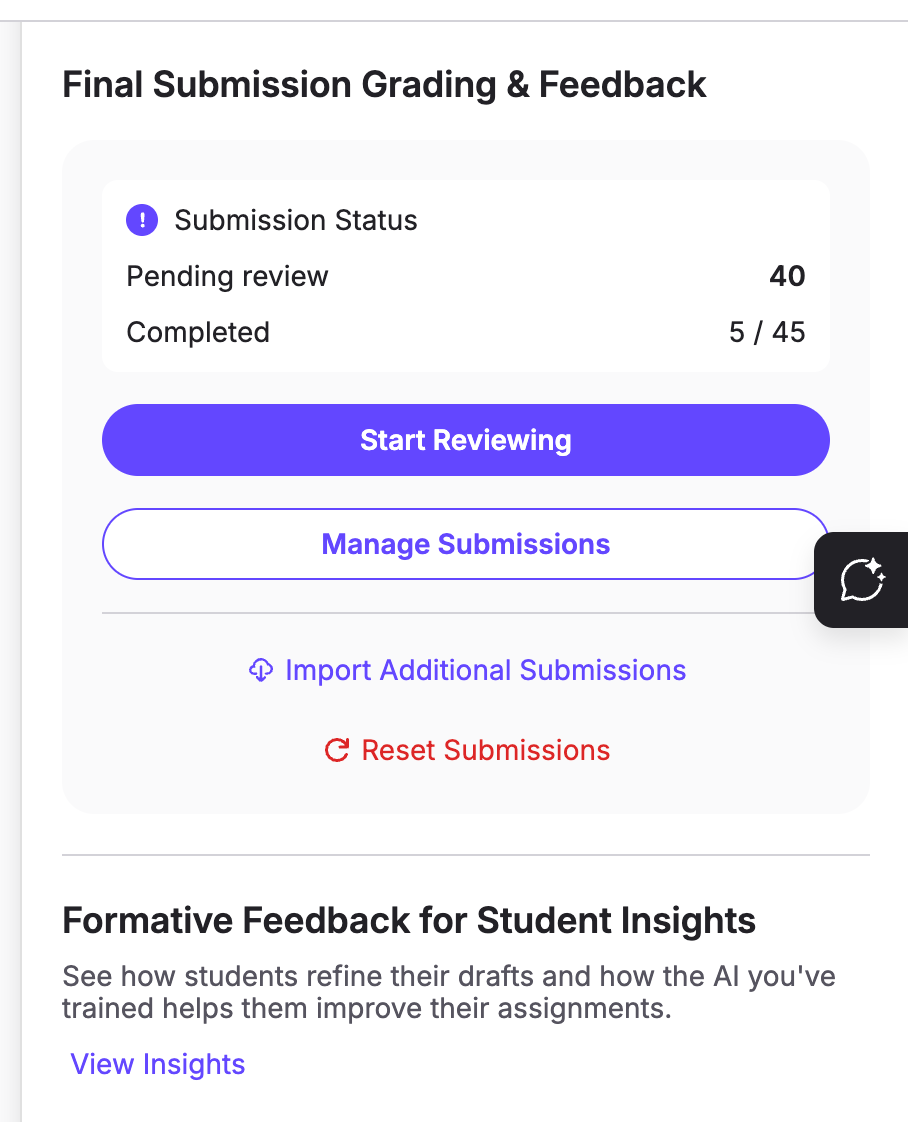
This option will be disabled if there are no graded submissions.
And then Push to LMS.
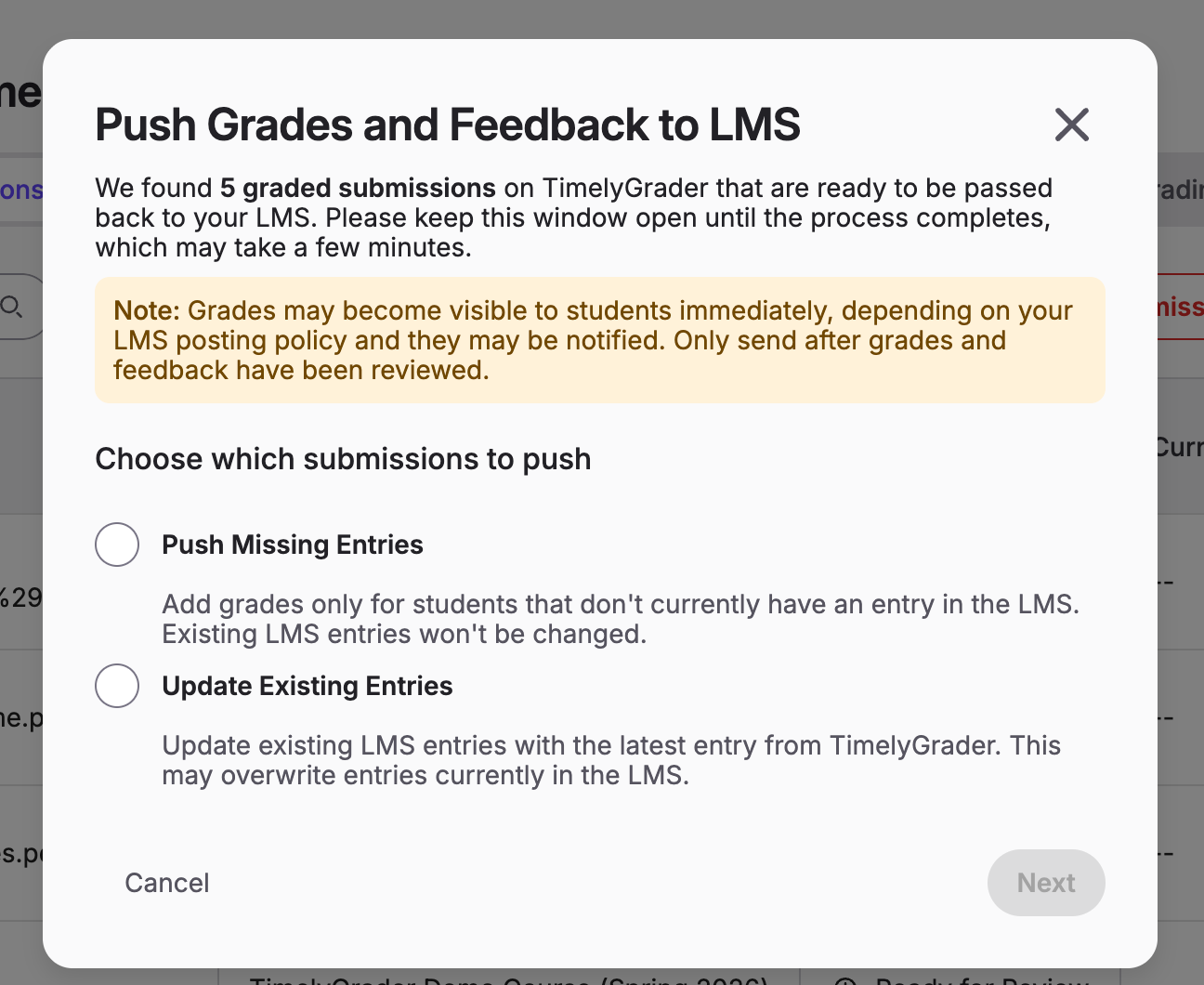
You have an option once you start the push back process. You can either Push Missing Entries or Update Existing Entries to the LMS.
Push Missing Entries means only students without an evaluation on Canvas will get their grades pushed back.
Update Existing Entries will update and overwrite any existing entries on Canvas with grades and feedback on TimelyGrader. If you have selected specific students, then only their grades and feedback will be updated.
We recommend sticking to Push Missing Entries, especially if you have already done any manual grading on Canvas or some grades were already passed back. Use the Update Existing Entries to do specific updates.
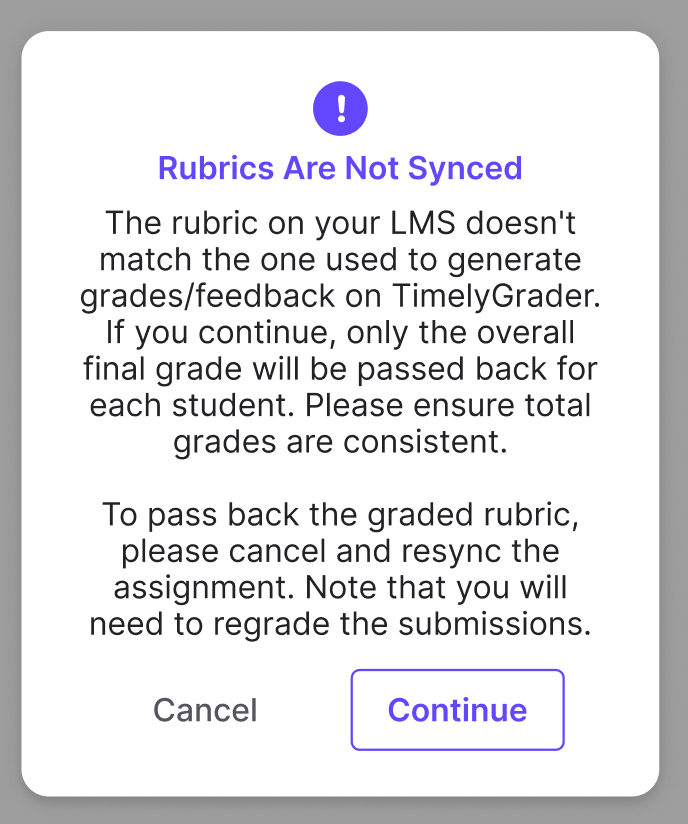
You are going to see a pop up notifying you that the rubrics are not synced across Canvas and TimelyGrader. This may happen for a few reasons:
Once you continue or if there is no Rubrics Are Not Synced pop-up, you should see a progress bar showing submissions being passed back. Do not exit or close this page during this process, as it may disrupt the pass-back process.
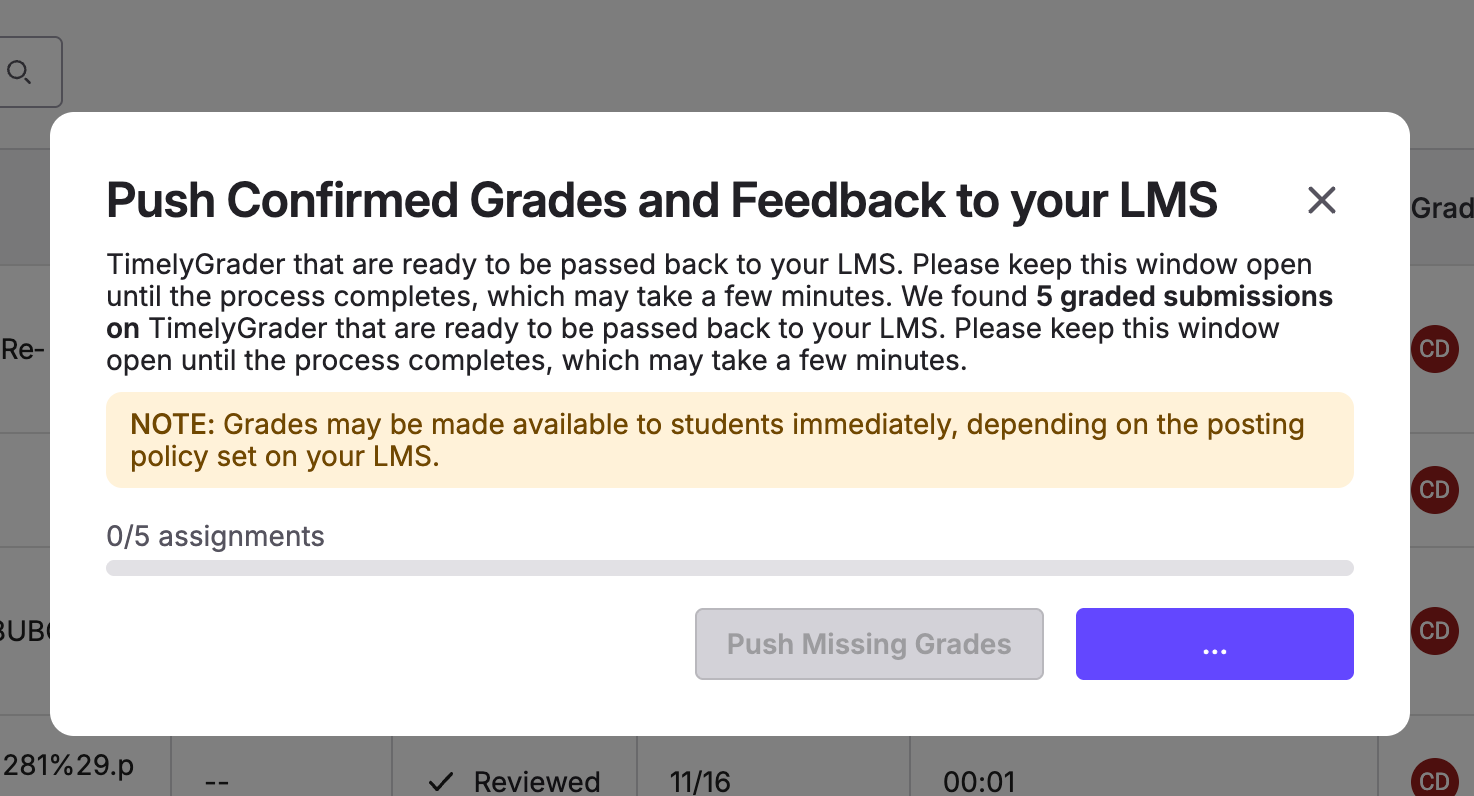
Once completed:
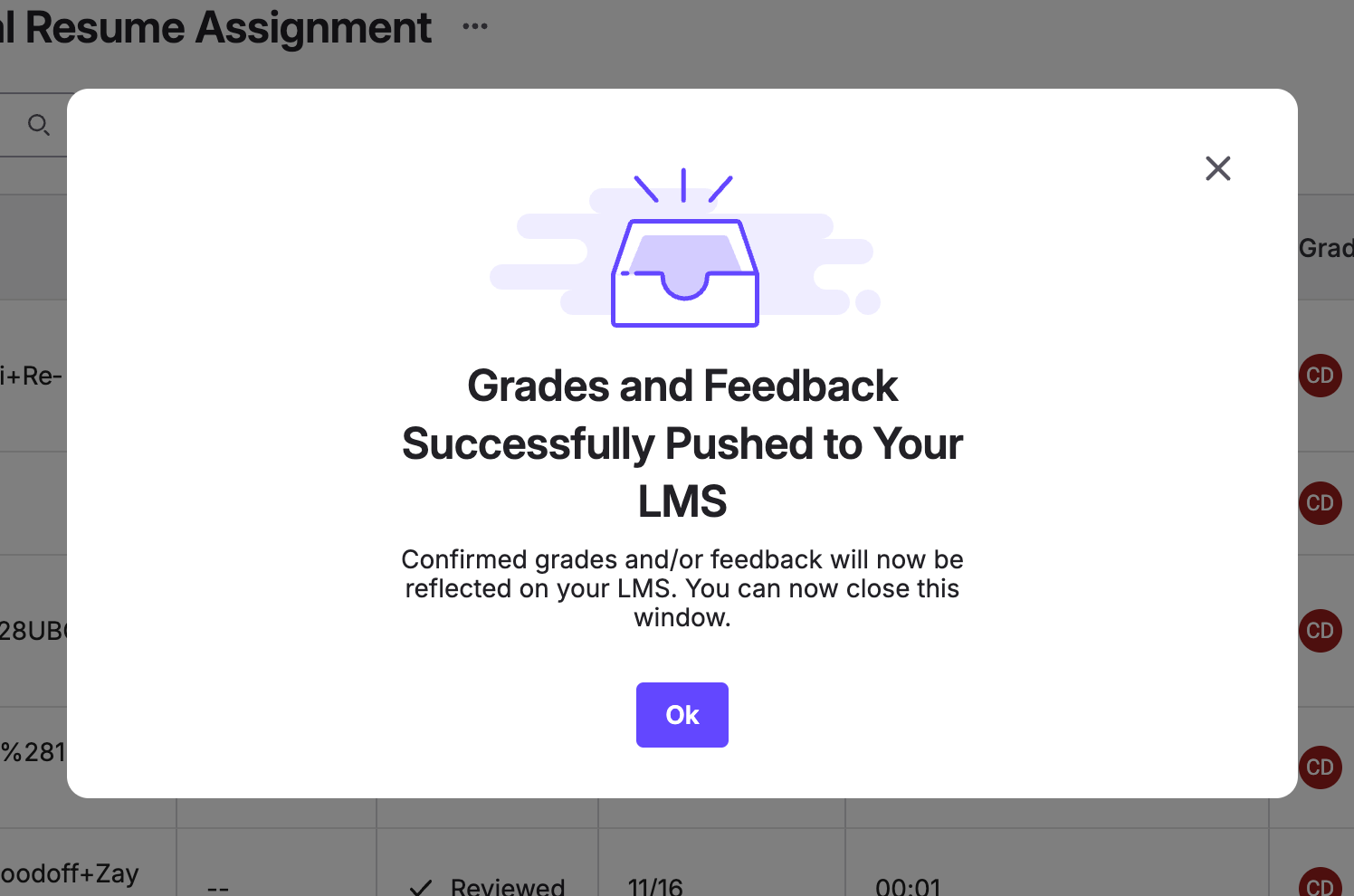
Depending on visibility options on Canvas, students may be able to see grades and feedback immediately. Please double-check these settings to ensure they are correct.
We recommend using ‘Manual’ posting policy for first time users.