
Depending on how you set up your assignment, you can either import or upload submissions to generate AI grading and feedback suggestions. This article will cover:
If you imported your assignment from Canvas, it will be linked to the corresponding Canvas assignment. You’ll need to import the student submissions from the LMS.
To do this:
1. Open the Assignment
From the Assignments page, open the assignment you want to import student submissions into.
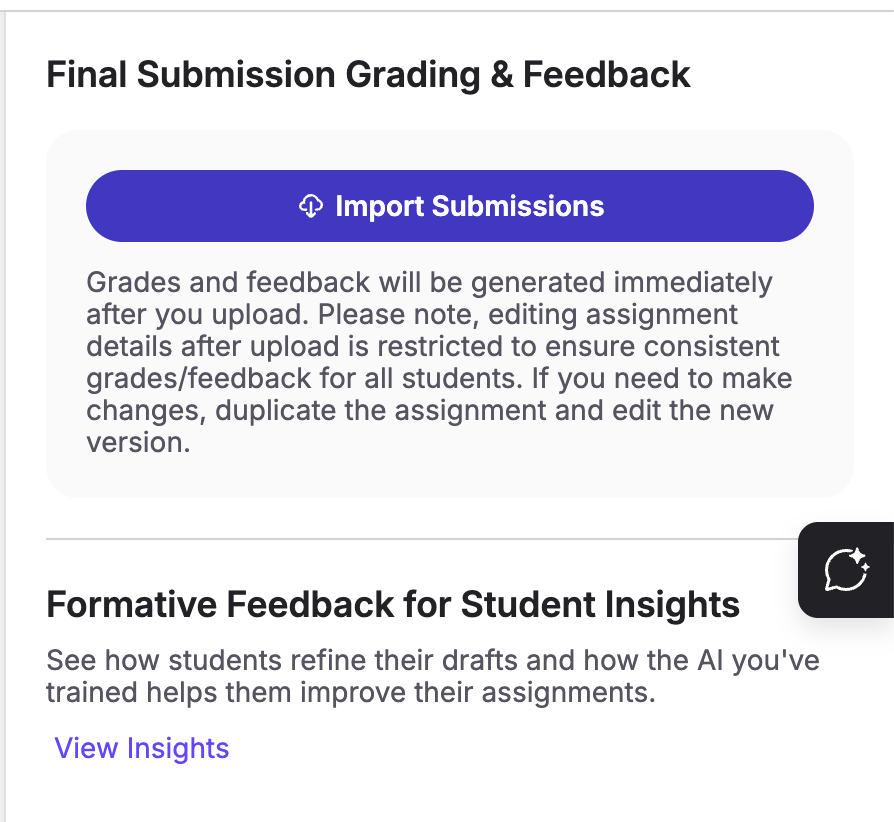
2. Click "Import Submissions"
From the right sidebar, under Final Submission Grading & Feedback, click the "Import Submissions" button.
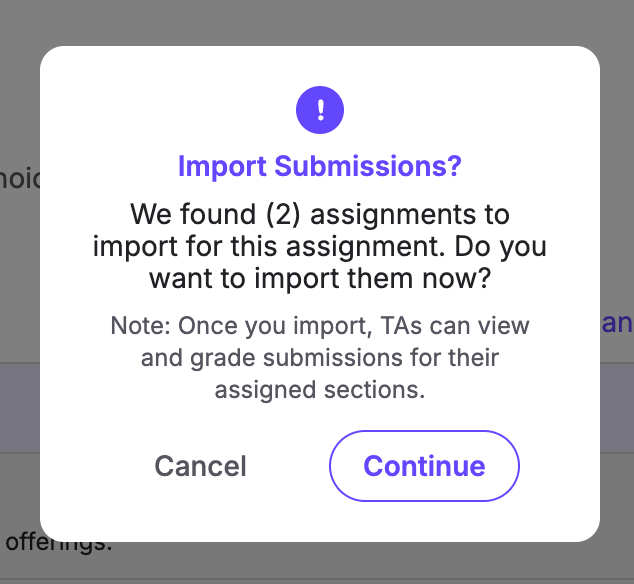
3. Confirm the Number of Submissions
After you click "Import Submissions," a pop-up will appear displaying the number of submissions found on Canvas that will be imported. If this number looks correct, click "Continue."
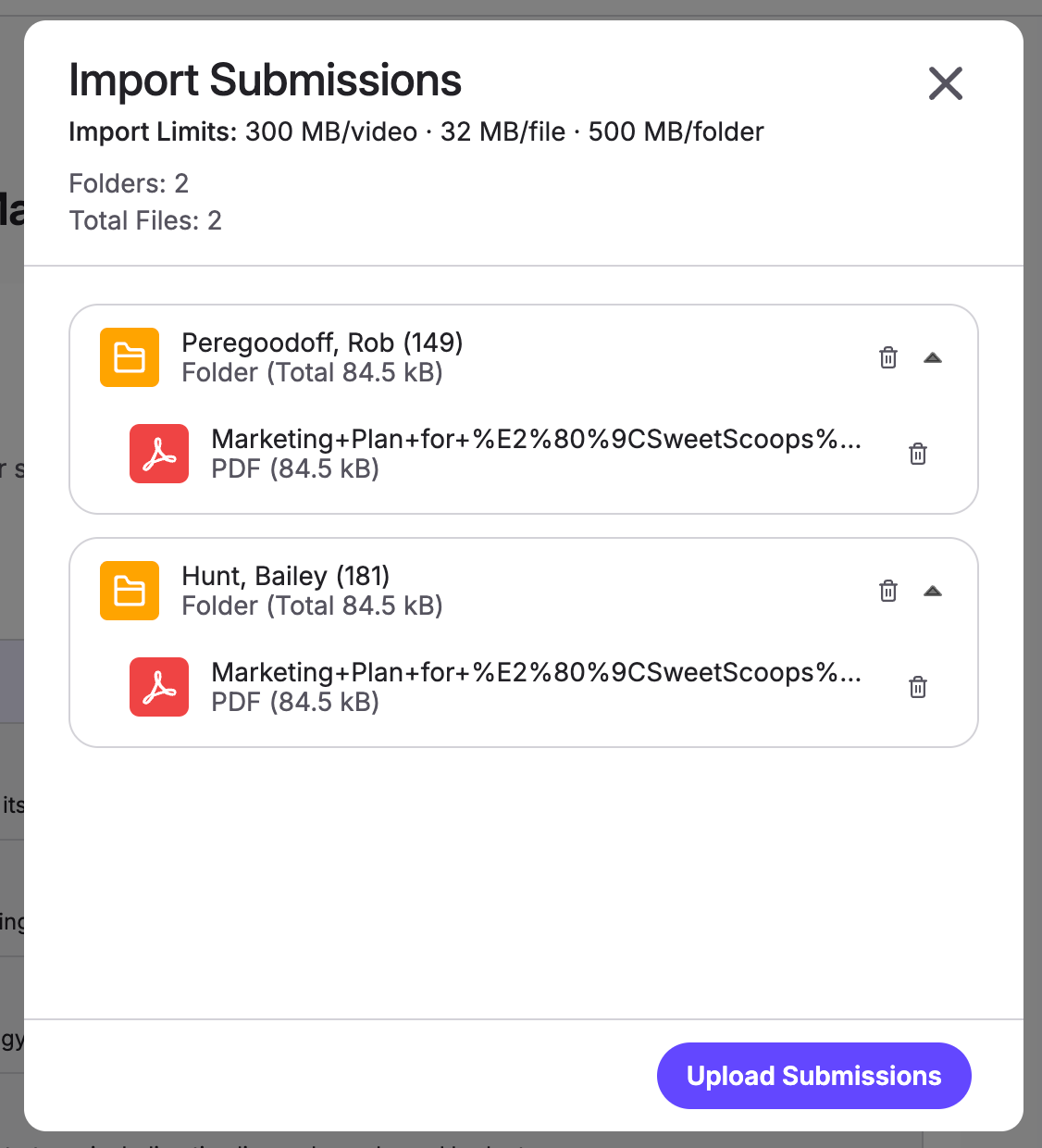
4. Upload the Imported Submissions
Click "Upload Submissions" to upload the imported submissions to TimelyGrader. Student files will be placed into a folder structure - meaning that students can submit more than one file per submission.
5. Wait While Submissions are Processed
Processing will begin right away, and you can track the progress in the right sidebar. It may take a few minutes, so feel free to navigate away or even close the platform and come back later. The system will keep working in the background. Perfect time to grab a cup of coffee! ☕️
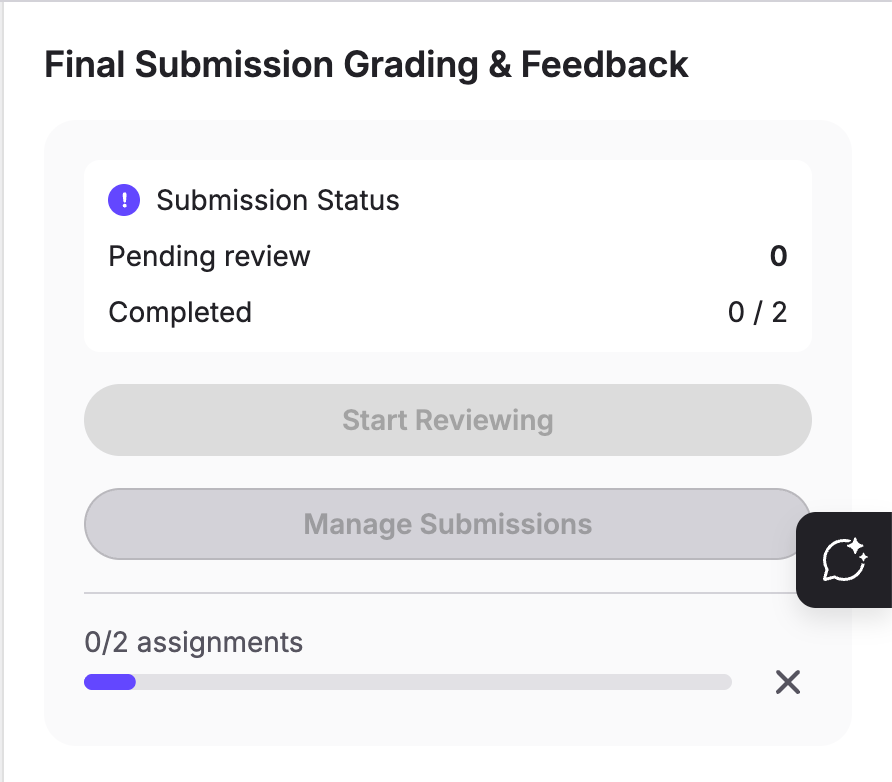
Once all the submissions have finished processing, you'll be able to click "Start Reviewing" to:
If you created the assignment manually, you'll need to upload submissions.
To do so:
1. Open the Assignment
Select the assignment from the Assignments Page that you want to upload student submissions to.
2. Upload Submissions
From the right sidebar, under Final Submission Grading & Feedback, click the "Upload Submissions" button. This will open the upload pop-up. From here, you can either:
👉 Click the "Click to Browse" button to select files from your computer
👉 Drag and drop files directly into the upload area
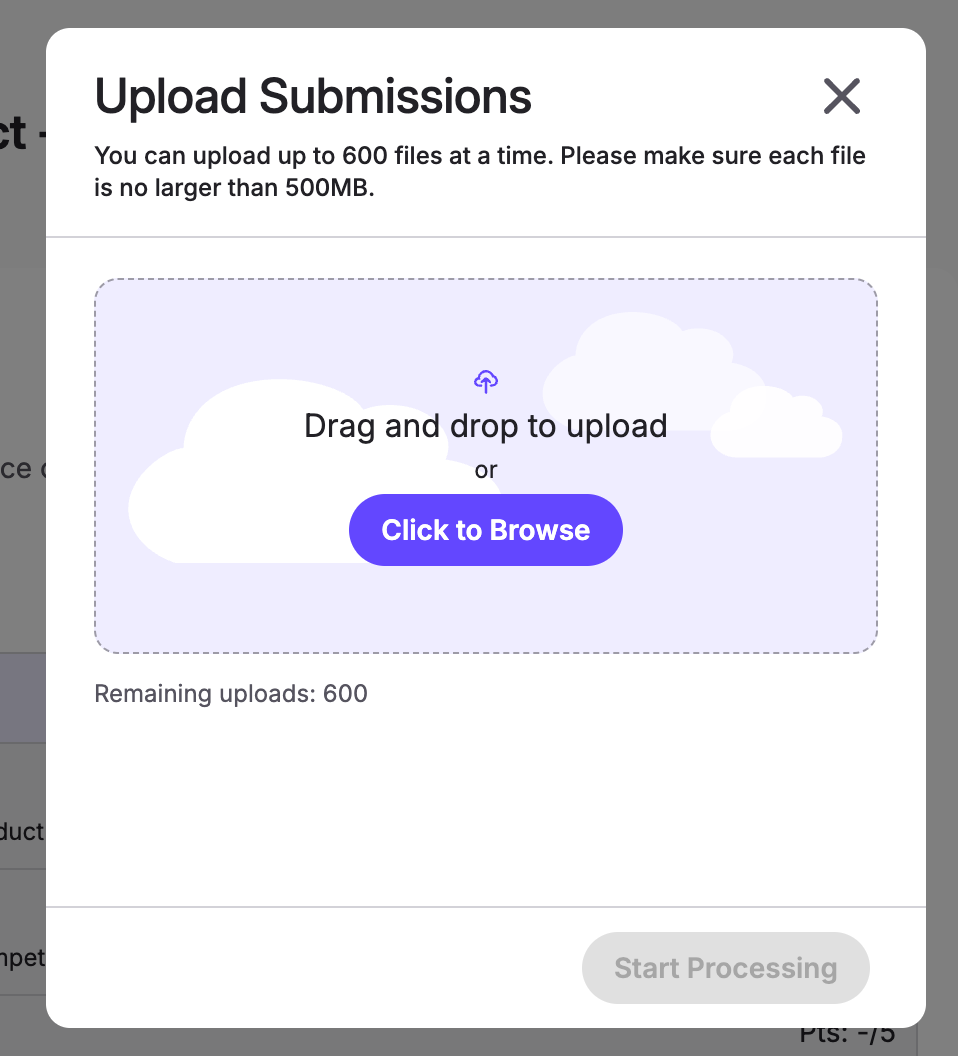
💡 Accepted file types: .pdf, .doc, .docx, .xls, .xlsx, .ppt, .pptx and .csv
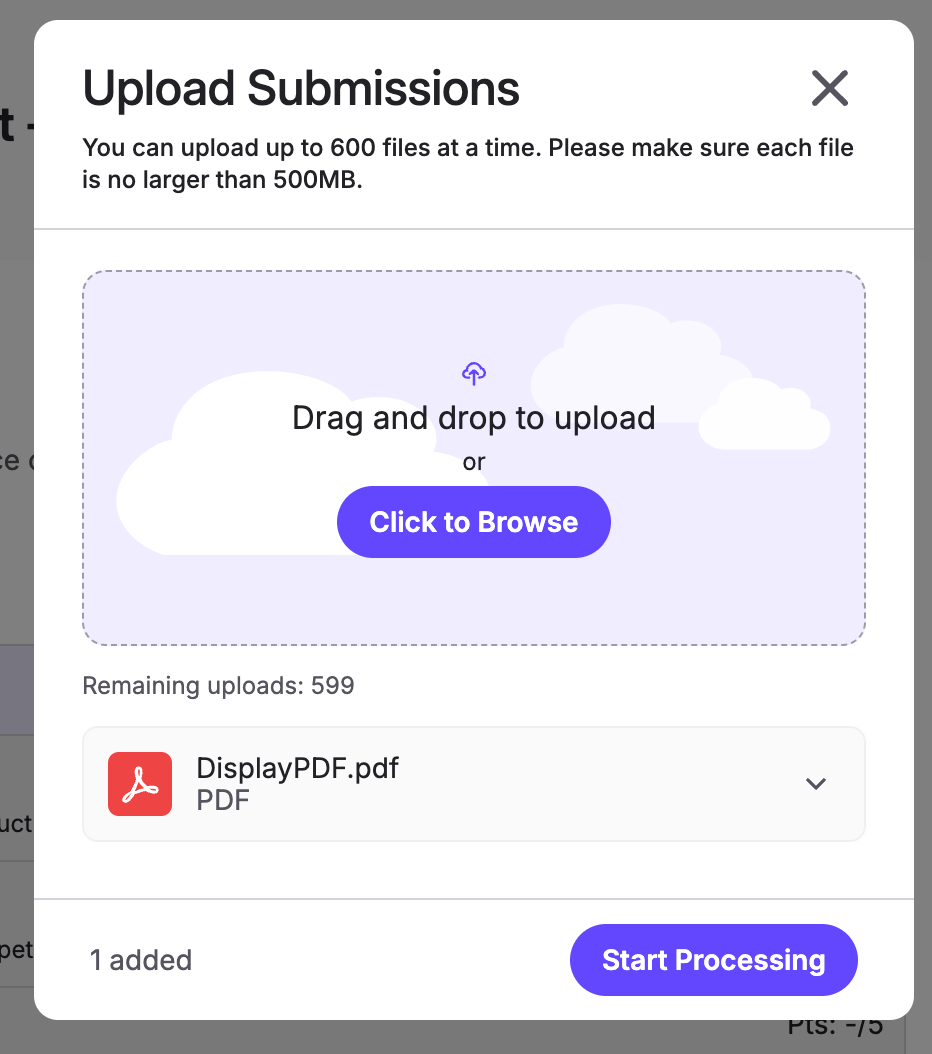
You can select up to 600 files. Please ensure that each file is under 30 MB. You must wait for all submissions to be added before you can initiate processing.
3. Start Processing Submissions
Once the submissions have all been added, you are ready to initiate processing. Click "Start Processing" to begin generating grading and/or feedback suggestions.
4. Wait While Submissions are Processed
Processing will begin right away, and you can track the progress in the right sidebar. It may take a little time, so feel free to navigate away or even close the platform and come back later. The system will keep working in the background. Perfect time to grab a cup of coffee! ☕️
Once all the submissions have finished processing, you'll be able to click "Start Reviewing" to:
If you imported/uploaded the wrong files or need to update assignment details, you’ll need to reset grades and feedback for the assignment. Learn how in this article.