If your assignment is linked to your LMS (you imported it from Canvas), when you're finished grading, you can push grades and feedback back to Canvas. Here's how:
1. Open the Assignment
From the Assignments page, open the graded assignment you want to push grades/feedback for.
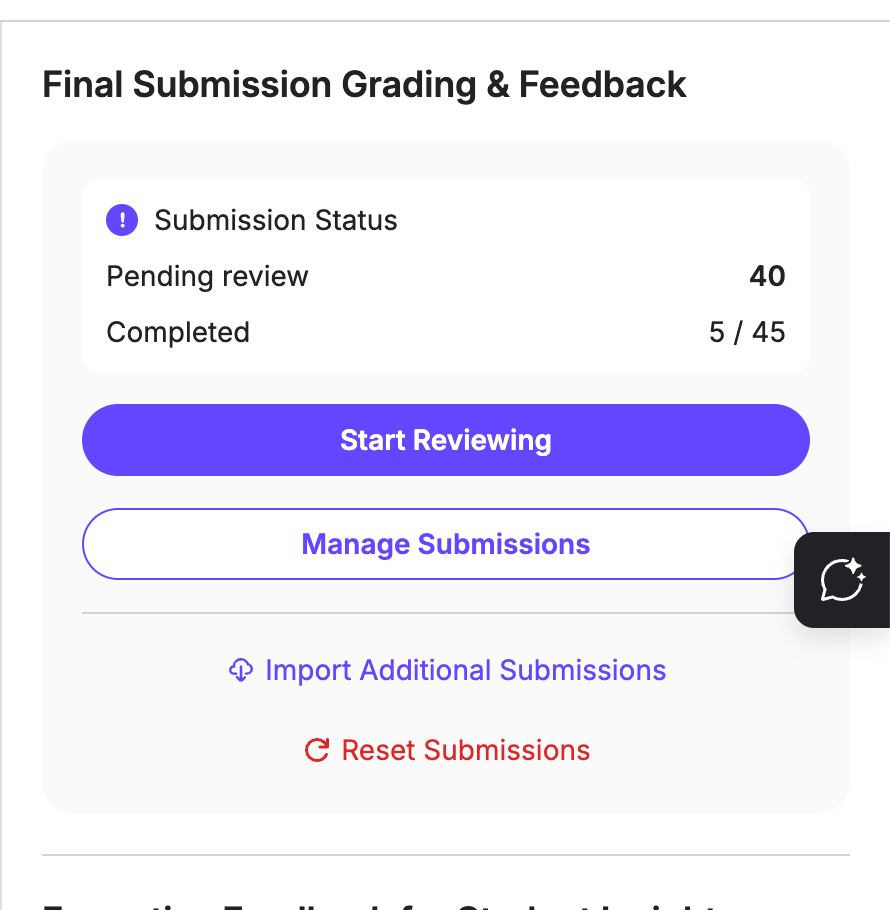
2. Push Grades/Feedback
Click the Manage Submissions page and select "Push to LMS."
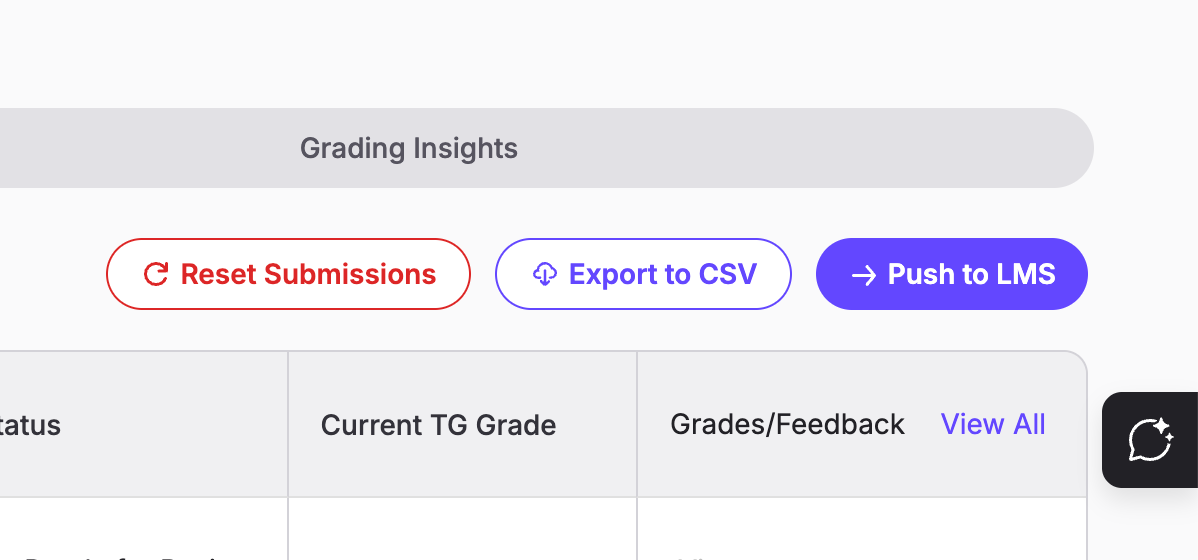
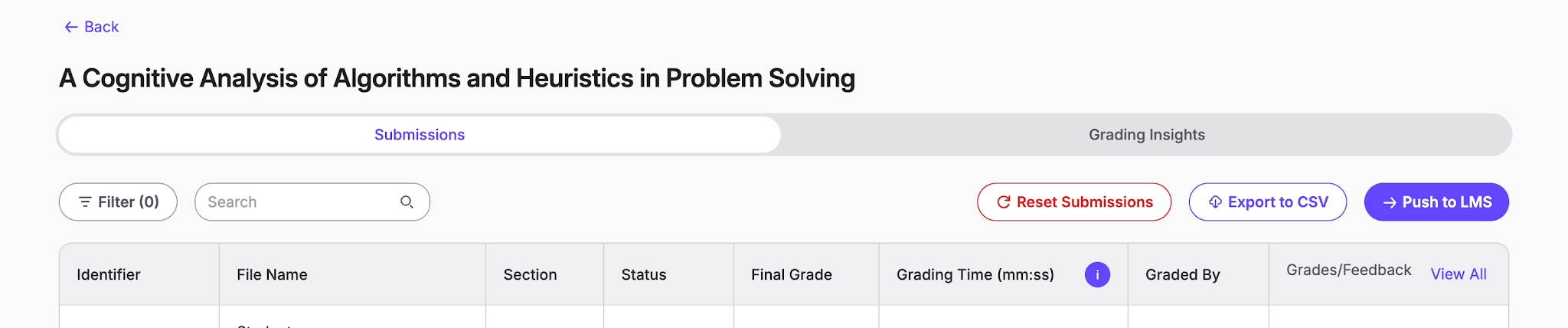
3. Choose Which Grades Will Be Pushed Back
Choose whether to push back all students with missing entries in their Gradebook or update specific or all grades that already exist on the Gradebook (assuming that the grades are different).
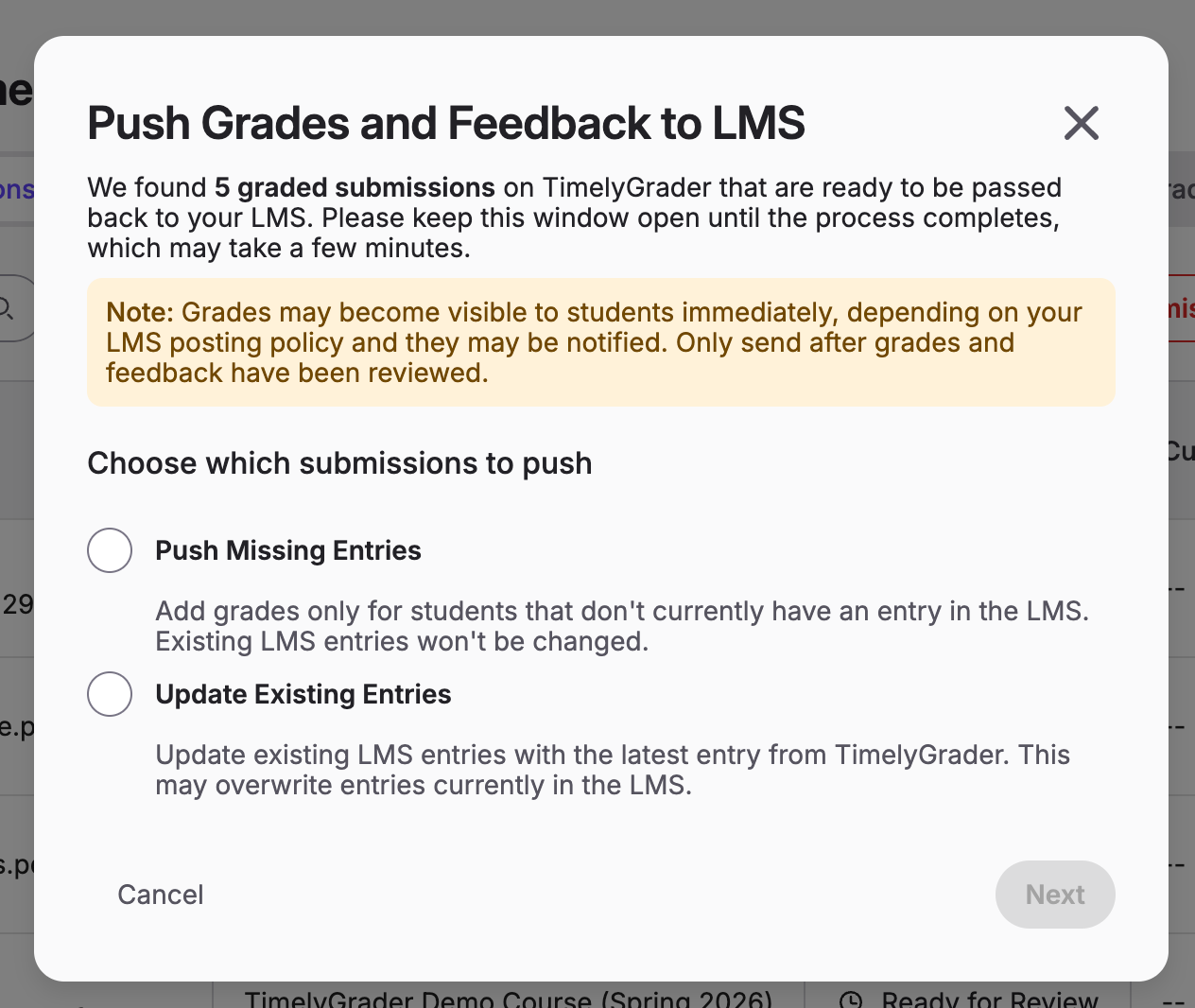
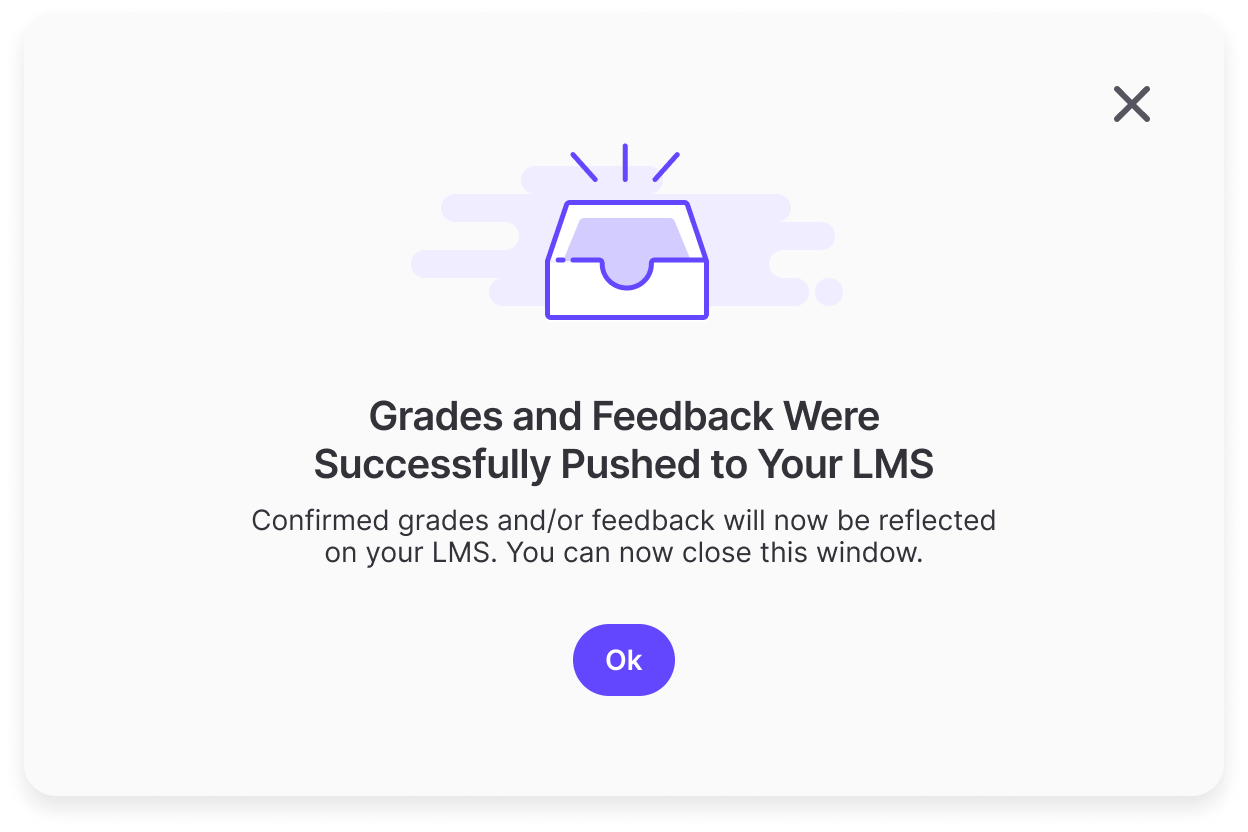
After you make a selection, please stay on the page while grades/feedback are pushed back. When the process is complete, you will see this message: