
Keeping your course roster up to date ensures that all instructors and students are properly connected to your assignments in TimelyGrader. Syncing your roster will import the most recent member roster directly from your LMS.
When to Sync Your Roster
To Sync Your Roster:
Note: Before we go any further, when you launch your course for the first time, TimelyGrader will attempt to sync your roster. However, it will not keep your roster sync during future launches.
1. Navigate to the People Page and click "Sync Roster."
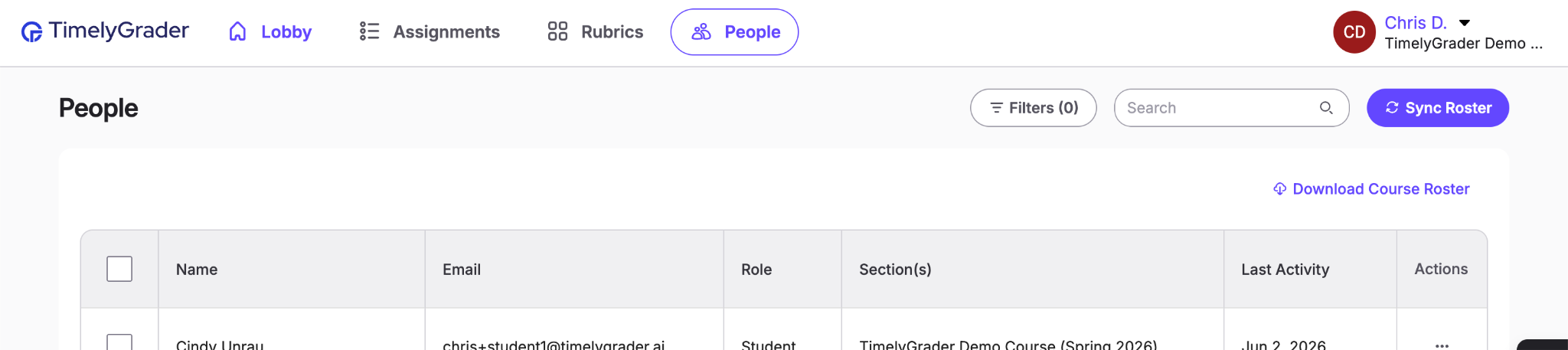
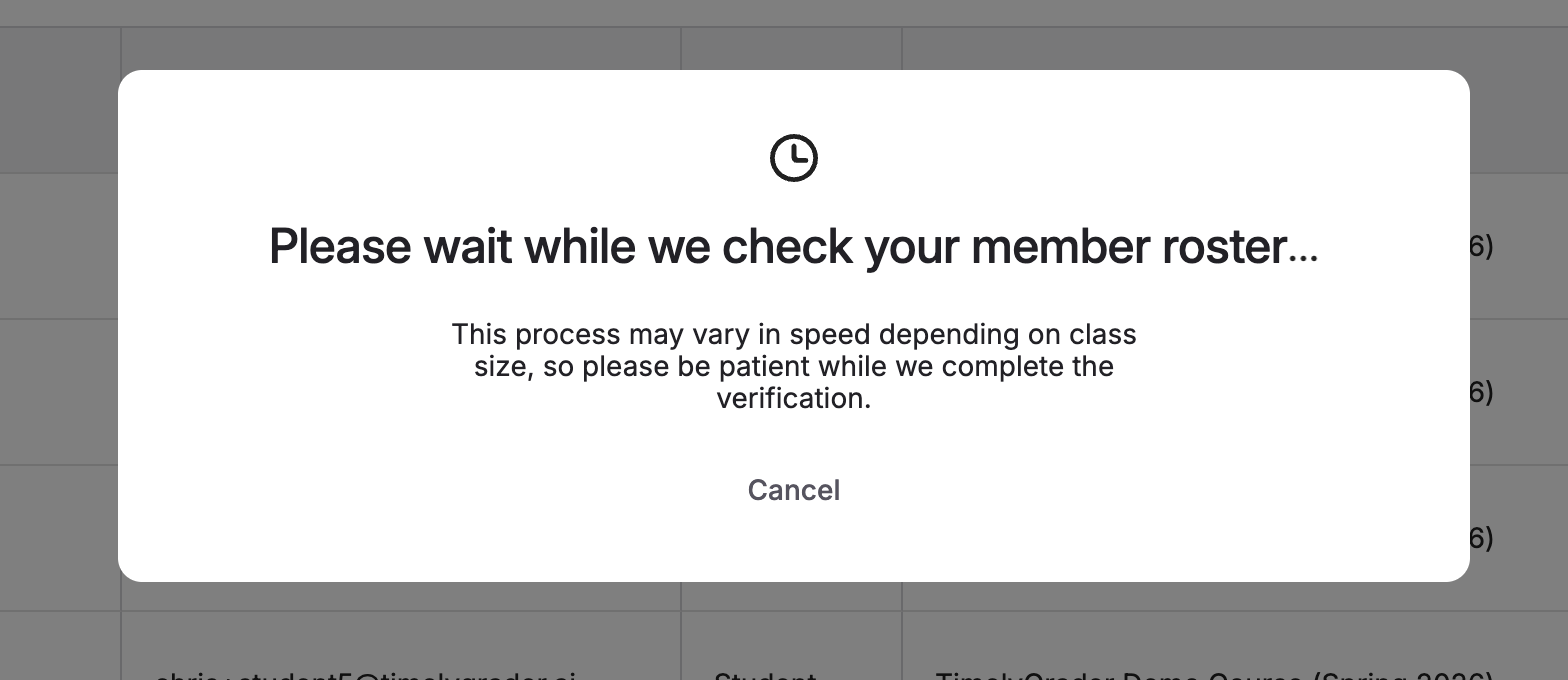
2. Wait for TimelyGrader to check the member roster on your LMS.
3. Review the changes to your TimelyGrader roster to ensure they look correct.
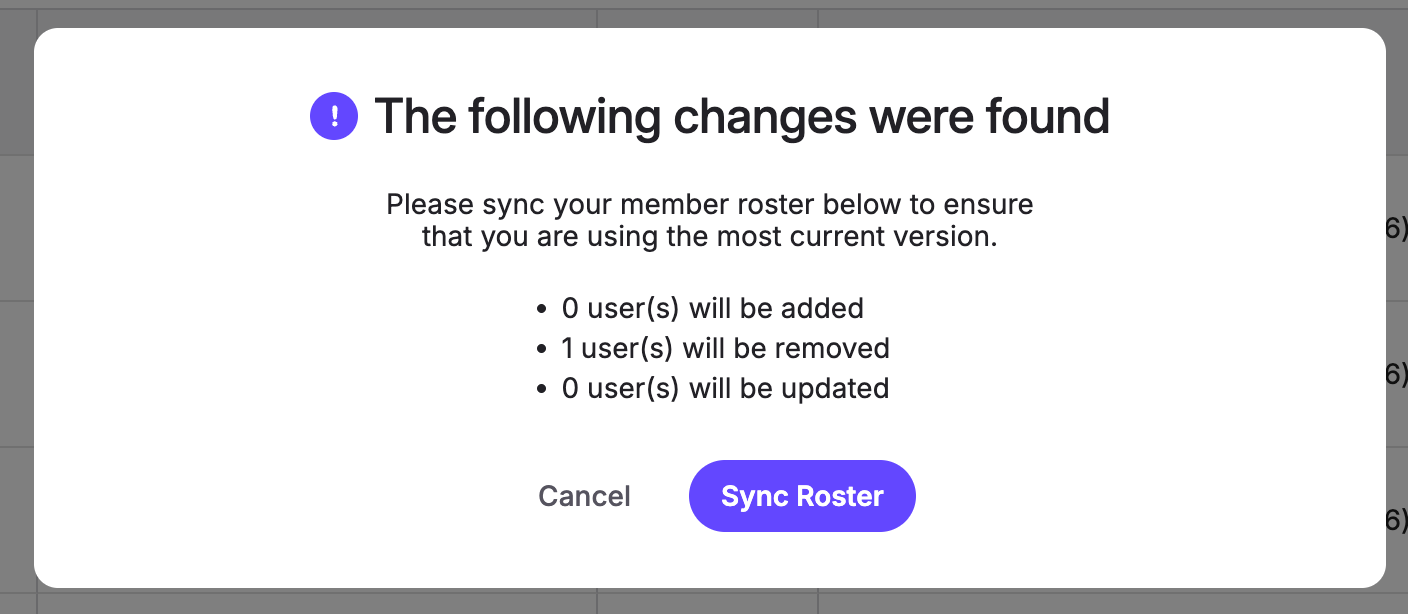
4. Click "Sync Roster" to apply the changes
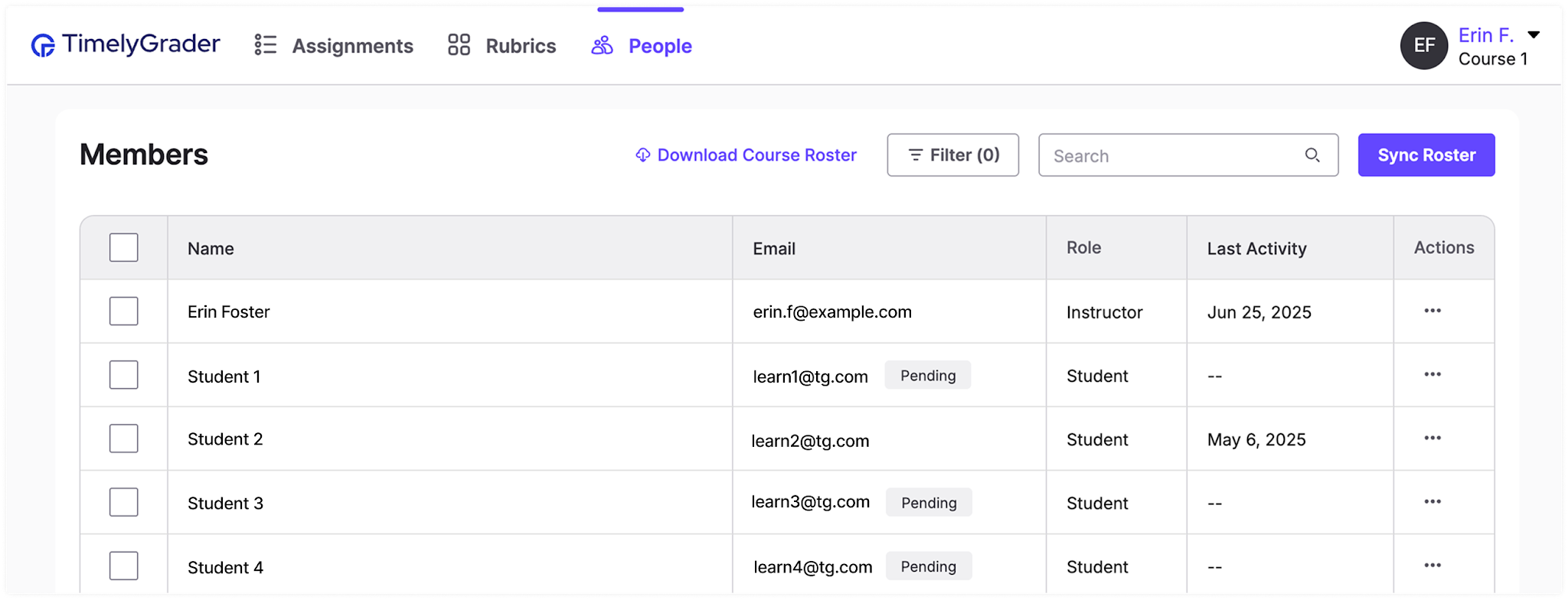
You will see a 'Pending' tag next to each instructor's or student's name until they open the course on TimelyGrader. You can download a CSV copy of your TimelyGrader roster by clicking "Download Course Roster."