
Rubrics are a key part of how TimelyGrader generates grading and feedback suggestions. Whether you're creating a new rubric from scratch or setting one up while creating an assignment, this guide walks you through both options.
TimelyGrader lets you build rubrics from scratch or generate them with AI. Manual creation gives you full control over each criterion and rating, while AI creation provides a quick starting point by generating a rubric based on your assignment description.
👉 Option 1: Create a Rubric from the Rubrics Page
1. Go to the Rubrics tab and click "+ New Rubric."
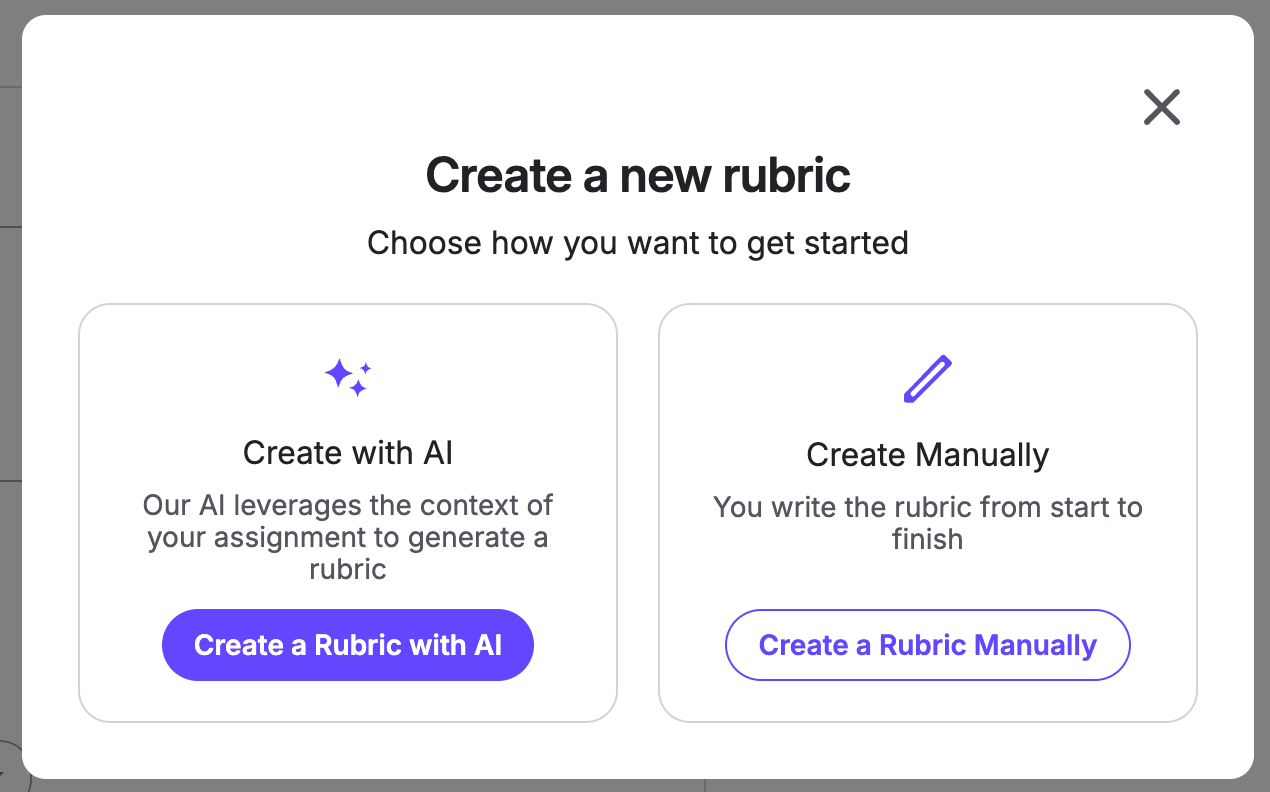
2. Choose if you'd like to create the rubric manually or with AI (for this example, we will create it with AI).
3. Fill in the required fields to set the parameters for generating your rubric.
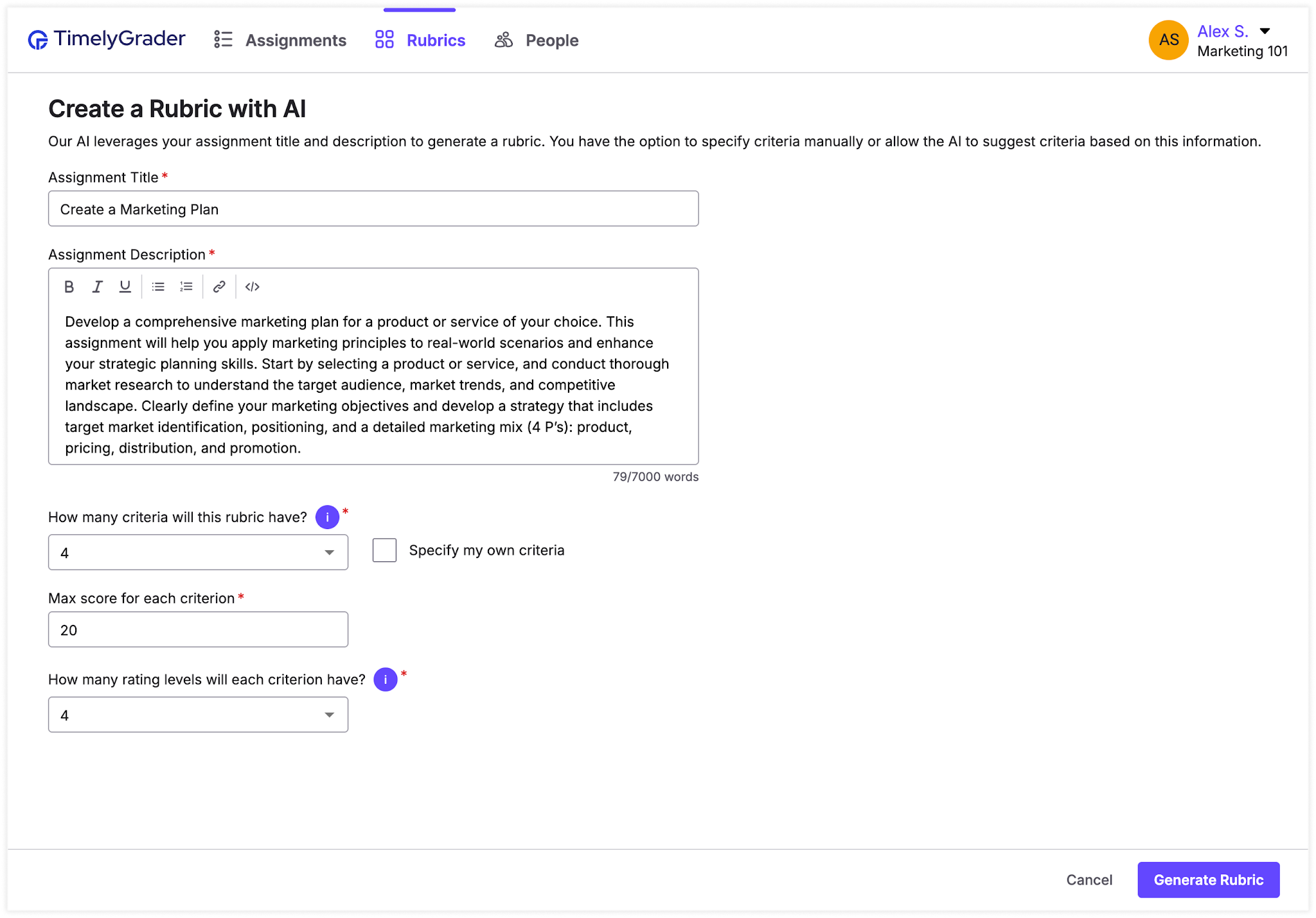
💡 Note: If you already have an idea of the criteria you want to include, select “Specify my own criteria.” This option lets you set the title and a description for each criterion.
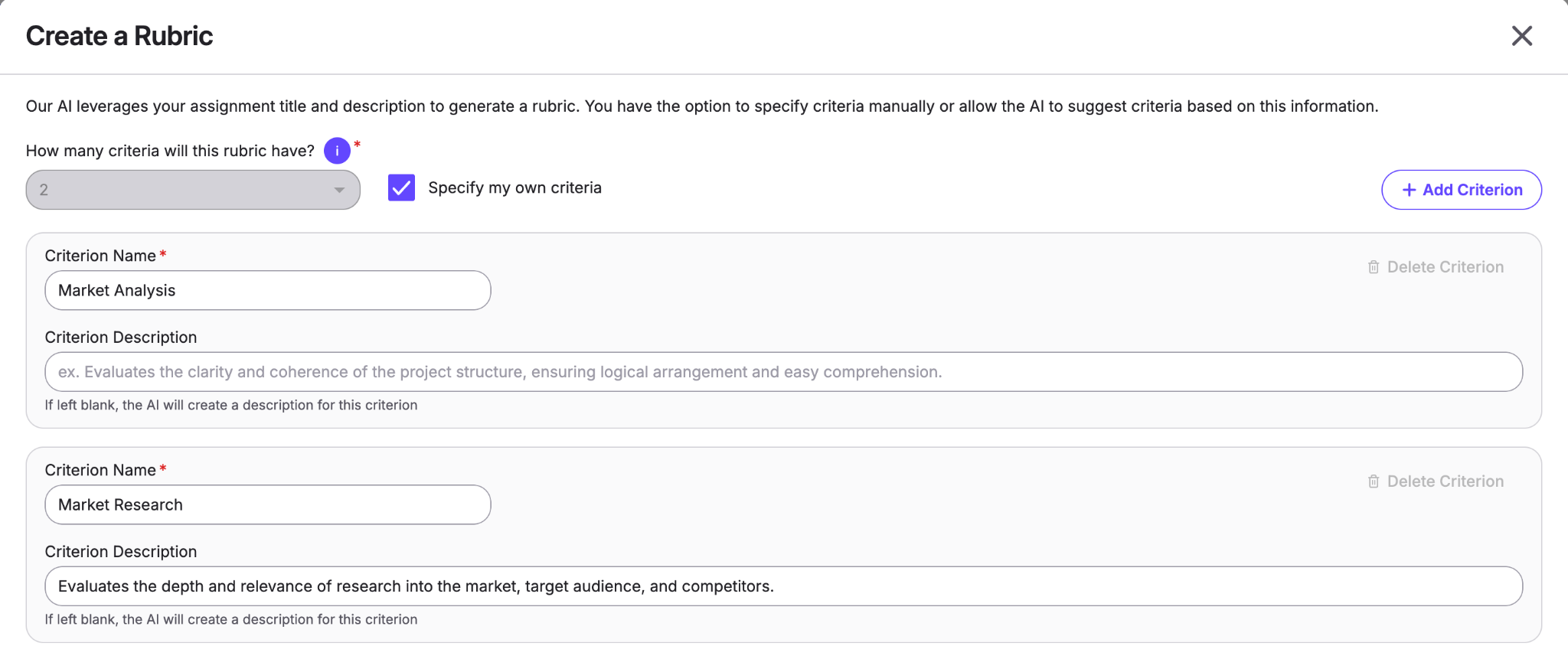
4. Click "Generate Rubric."
5. Once the rubric has been generated, review and edit as necessary.
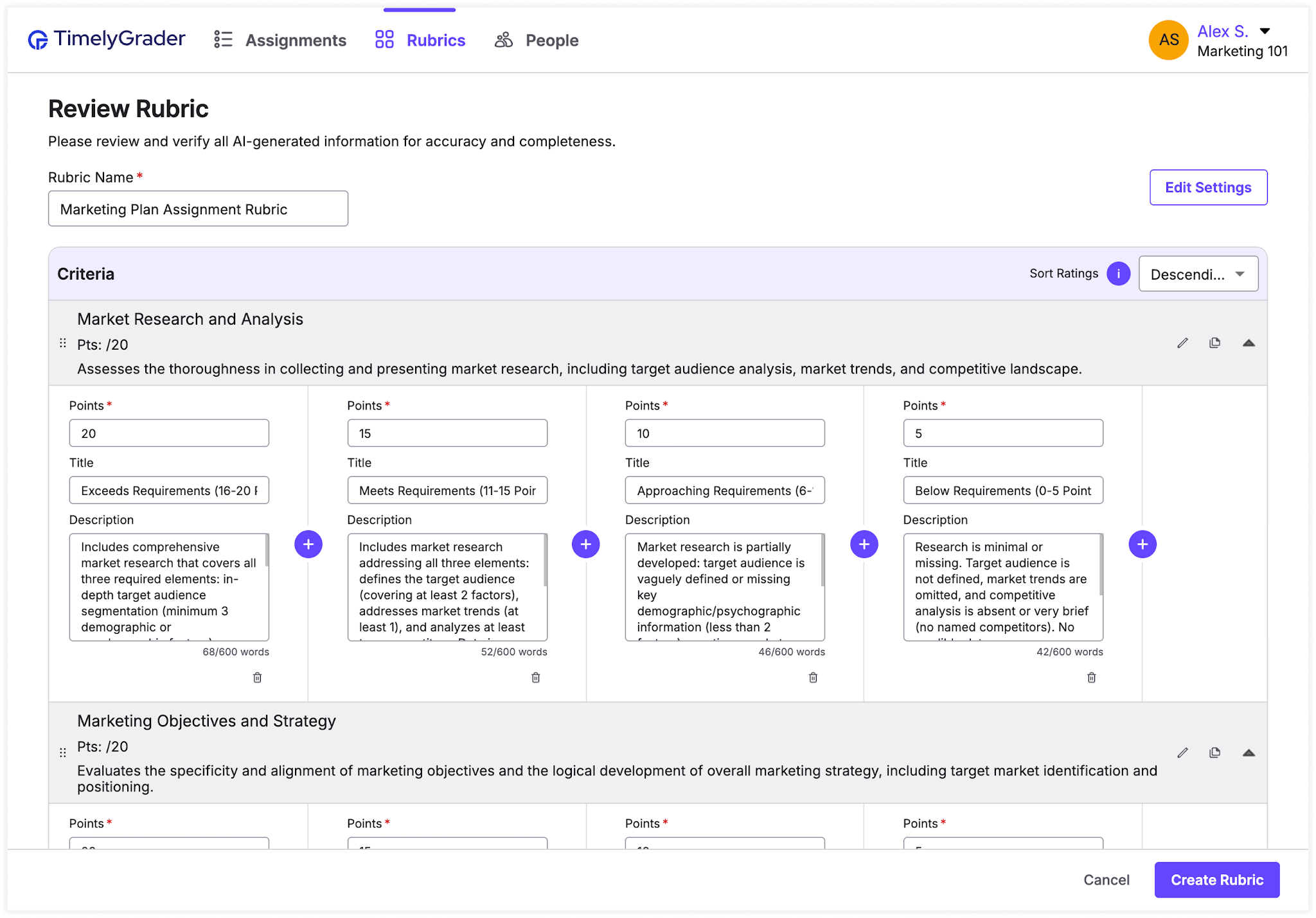
6. Click "Create Rubric" and confirm that you have reviewed all AI-generated information to save.
Rubrics that are created on the rubrics page are automatically saved as templates and can be used in all your assignments.
💡 Note: You can access the Rubrics page from both the course dashboard and within any course, making it easy to reuse rubrics across multiple courses.
👉 Option 2: Create a Rubric During Assignment Setup
1. From the assignment setup page, click "+ Add a Rubric."
2. Select "Create a new rubric" from the dropdown.
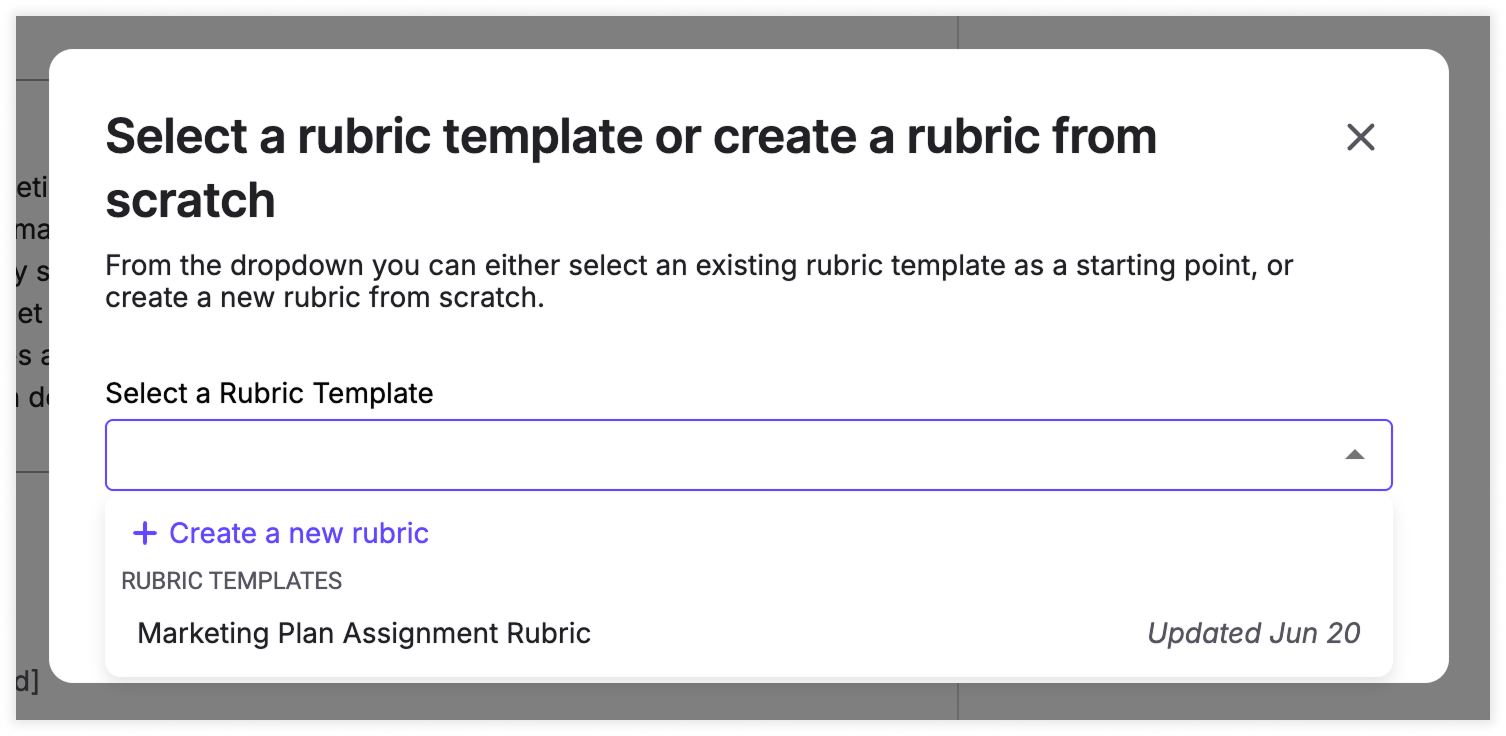
💡 Tip: You can also choose a rubric template and apply it to your assignment. If you used Option 1 to create a rubric, you’ll find it listed here.
3. Choose if you'd like to create the rubric manually or with AI (for this example, we will create it manually).
4. Enter rubric details
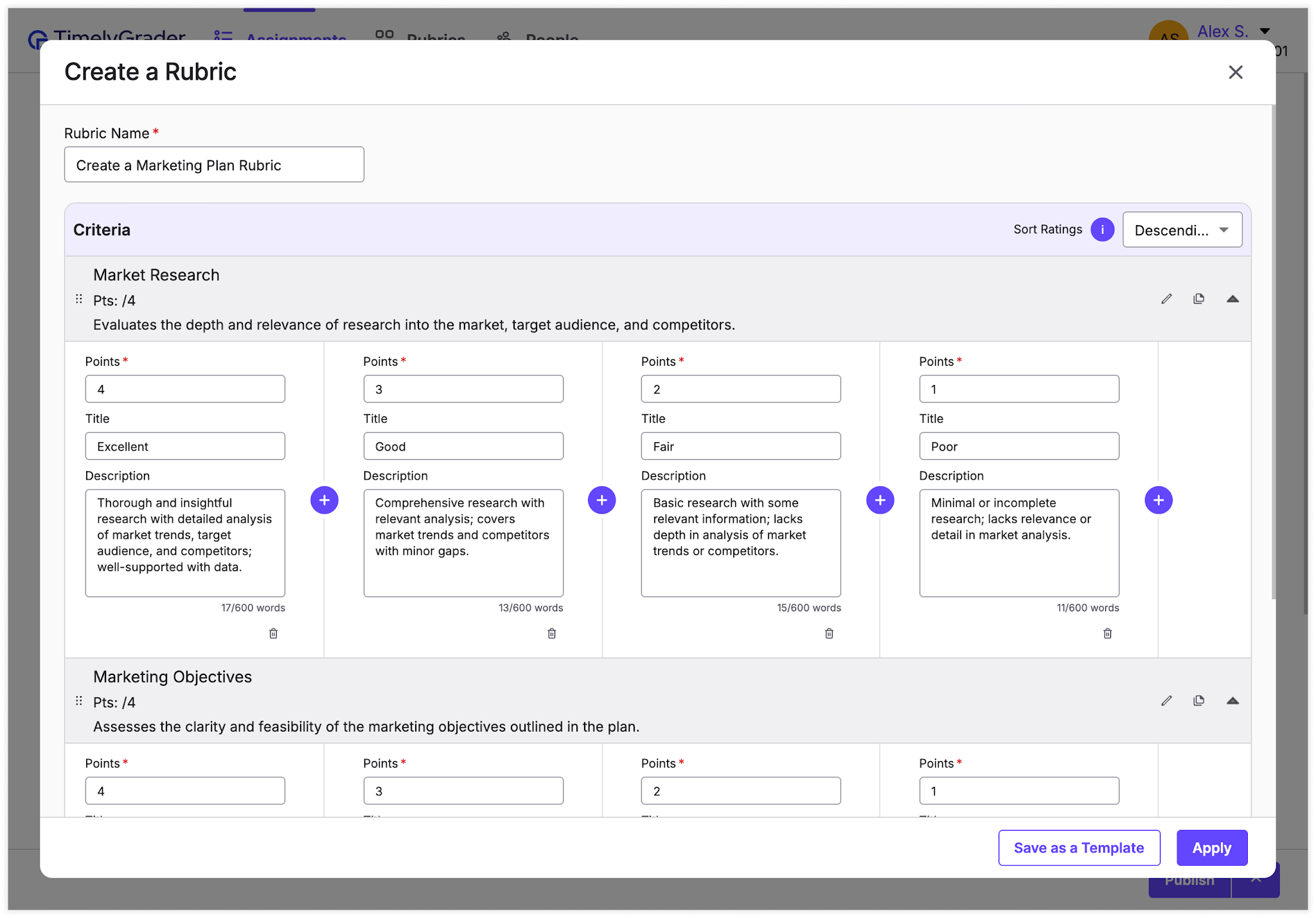
💡 Note: Rubrics that are created within an assignment are not automatically saved to the rubrics page. If you'd like to reuse this rubric in the future, click "Save as a Template" to add it to the rubrics page.
5. Click "Apply" to add the rubric to your assignment
💡 Important: The rubric will be added to your assignment but won’t be saved permanently until you publish or save the assignment unless you’ve saved it as a template.