
TimelyGrader’s default feedback structure provides clear, criterion-based comments aligned with your rubric. However, every assignment is different. With Advanced Feedback Settings, you can customize the tone, length, and structure of AI-generated feedback to fit your course and teaching style.
1. Open Advanced Feedback Settings
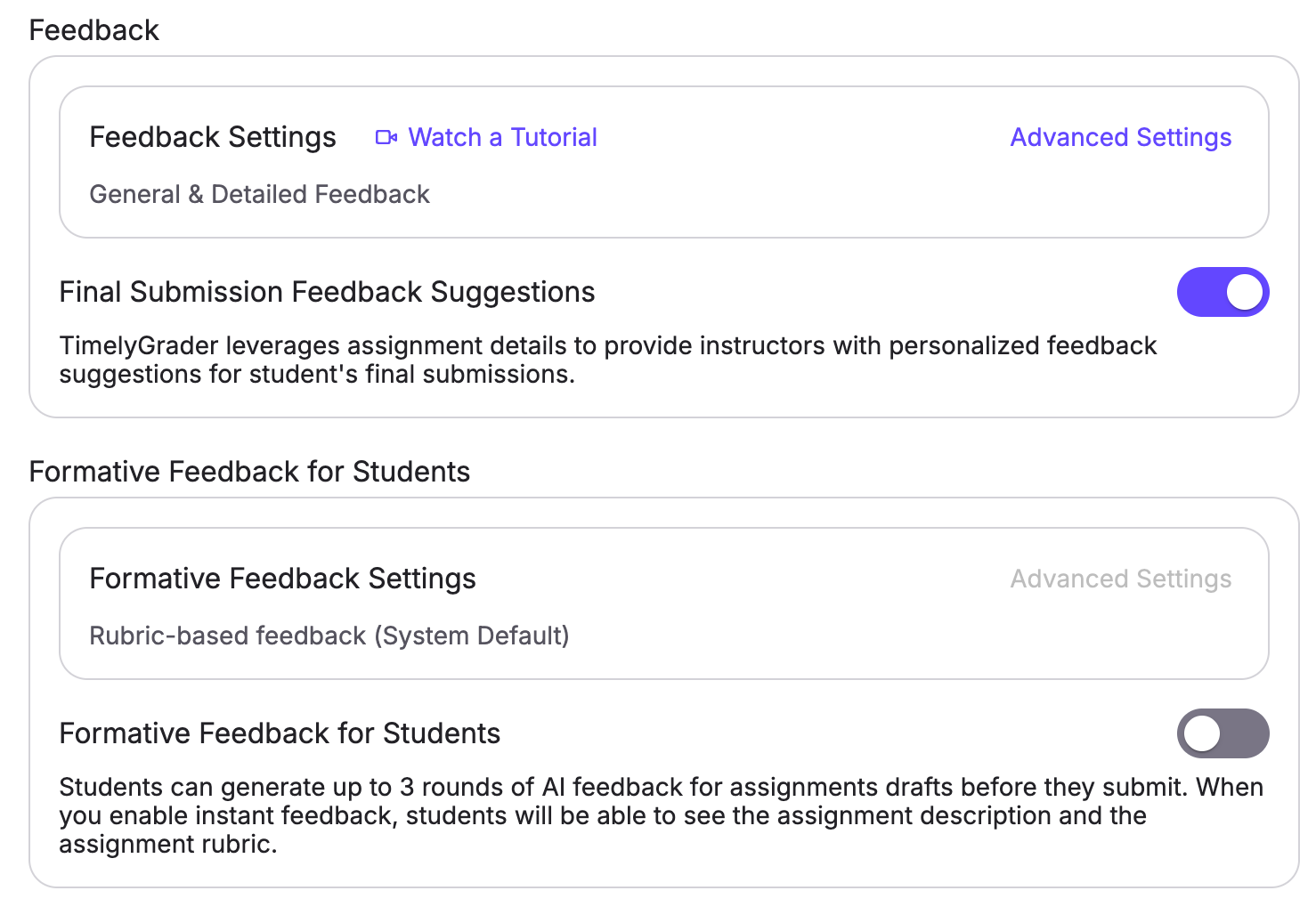
From the assignment setup view, scroll down to the Feedback section, and click "Advanced Settings."
2. Customize Your Preferences
When you open advanced feedback settings, you'll see several options you can adjust based on the feedback structure you have selected. Here's an overview of each feedback structure:
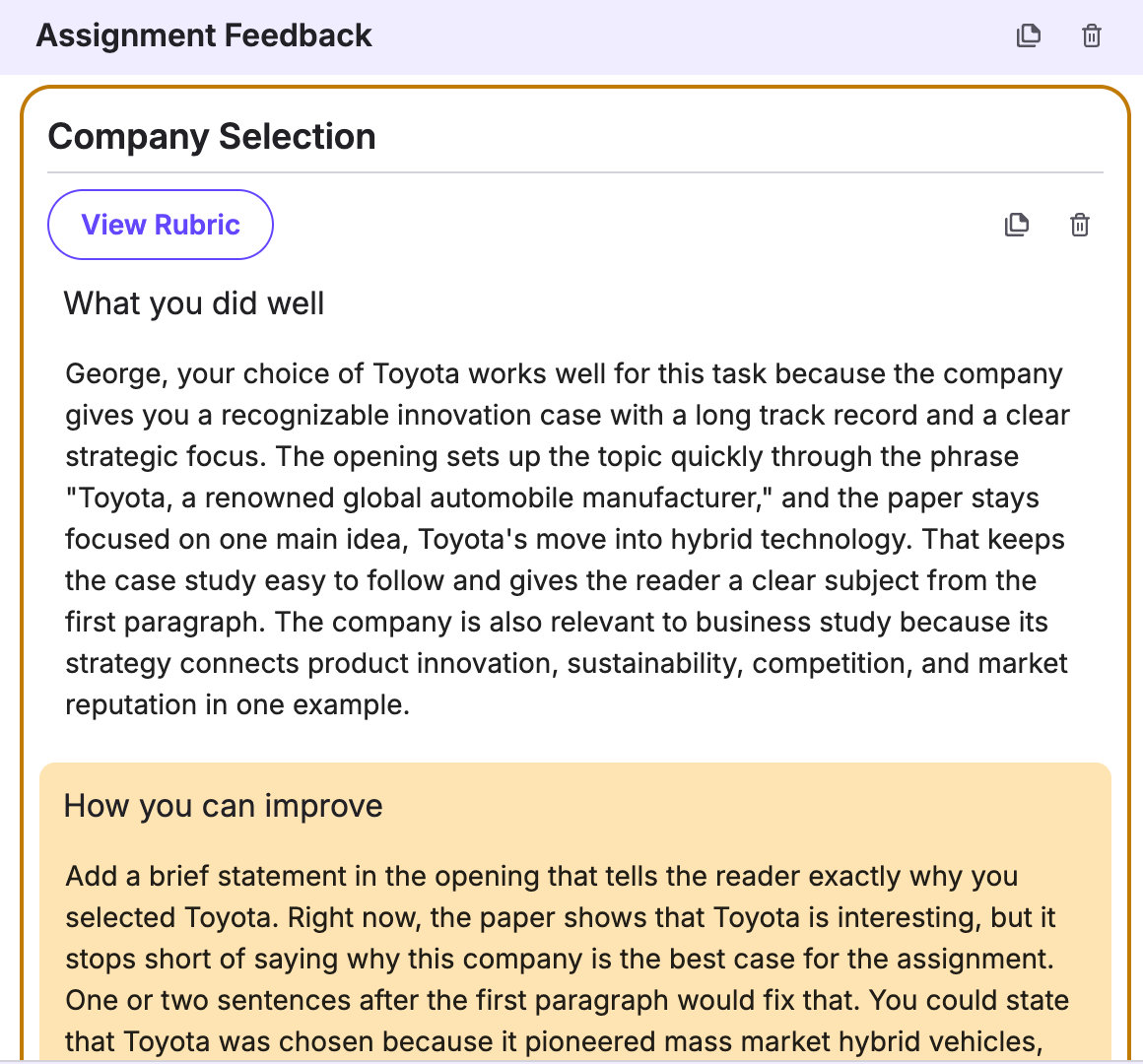
Rubric-Based Feedback (Default)
By default, our system will provide one piece of positive feedback and one suggestion for improvement for each criterion on your rubric.
You can adjust:
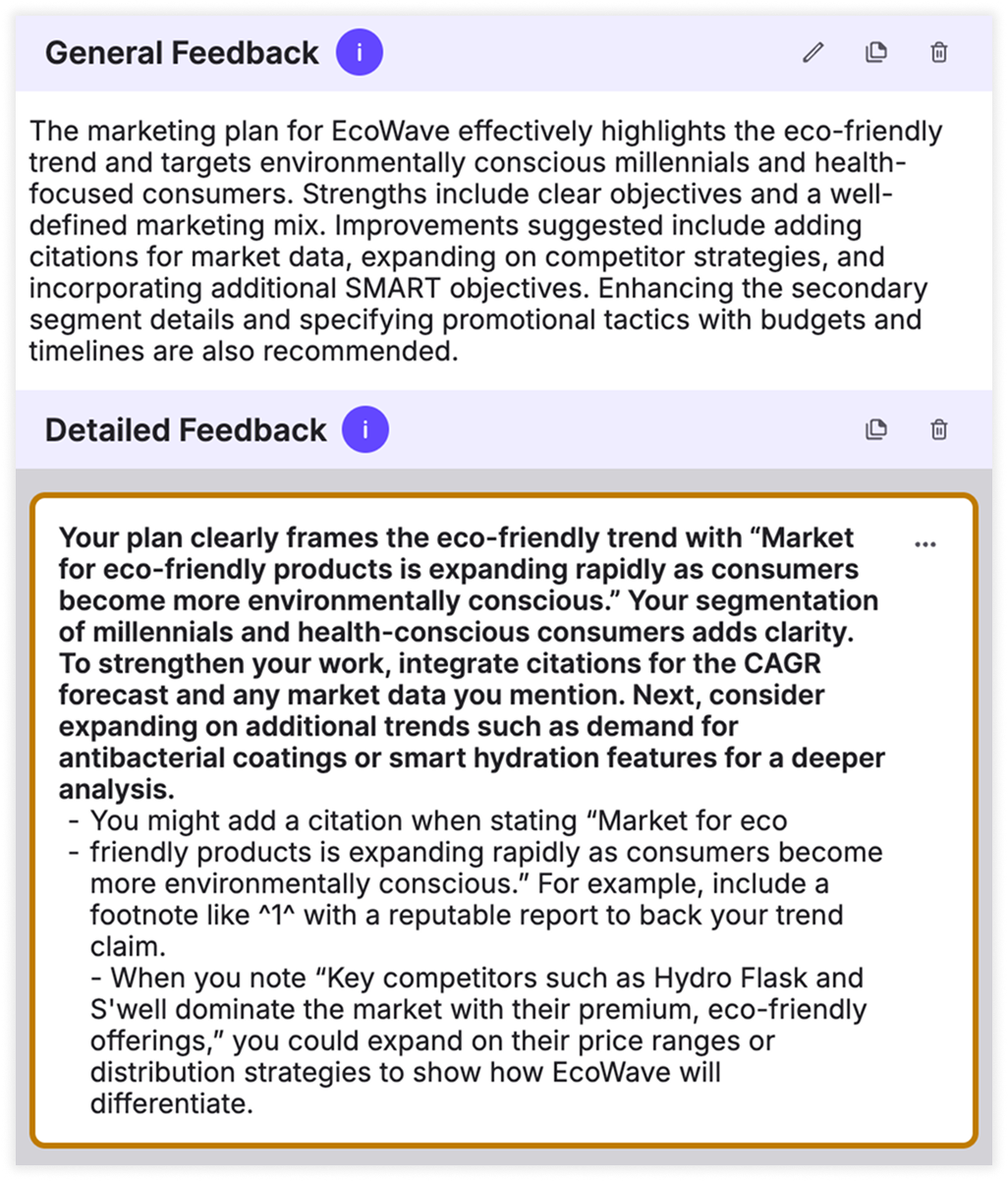
General & Detailed Feedback
This option includes a paragraph of general feedback on the student's submission, along with up to five targeted suggestions for improvement.
You can adjust:
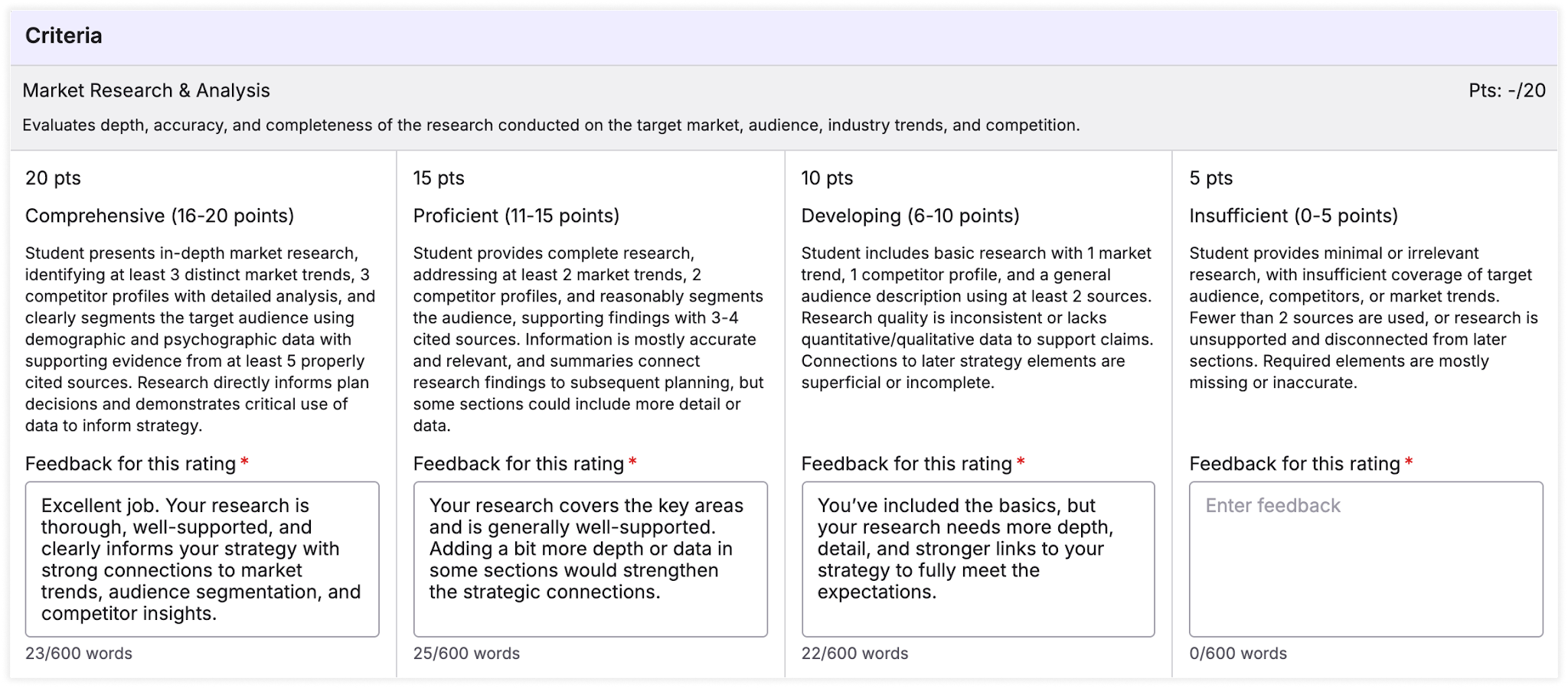
Smart Feedback Templates (Manually Created)
This option allows you to pre-define feedback for each rating on your rubric. When grading, this feedback is automatically applied.
Custom Feedback Settings
If none of the previous structures are what you are looking for your assignment, you can also add a custom feedback structure. You are responsible for writing instructions about the tone, structure, and content of feedback.
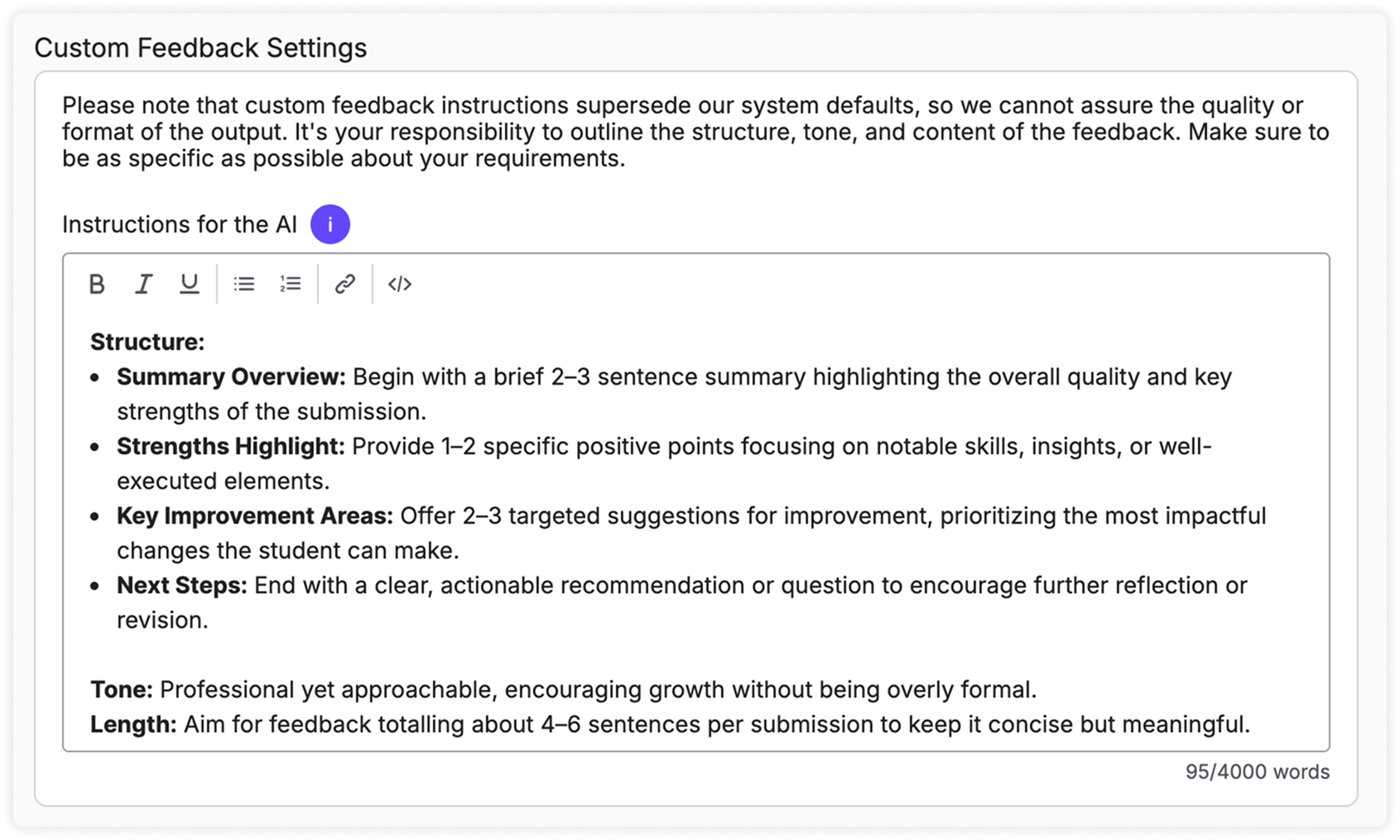
💡 Note: This option may require some experimentation to get the exact structure that you would like. Fine-tuning is a great way to iterate on your custom instructions. To learn more about fine-tuning, check out this article.
3. Save Settings
When you're happy with the adjustments you've made to feedback settings, click "Save Settings."
💡 Important: These settings will be added to your assignment, but won’t be saved permanently until you publish or save the assignment.